The Volinga Plugin provides a set of rendering and model-specific settings that control how Gaussian Splats are rendered, lit, and integrated into Unreal Engine.
In the latest versions of the Volinga Renderer, settings are divided between global controls and per-actor controls, allowing multiple Gaussian Splat assets in the same level to use independent rendering, normal, material, and Proxy Mesh configurations.
The settings are organized into the following categories:
- Volinga Toolbar Settings – Global settings that affect Gaussian Splat rendering across the project.
- Radiance Field Model Settings – Per-actor settings that control the rendering and behavior of each individual Gaussian Splat.
- Proxy Mesh Settings – Per-actor controls that determine how a Volinga Mesh contributes normals, materials, or both to a Gaussian Splat.
- Radiance Field Animation Settings – Animation controls available only for animated 4D Gaussian Splats (4DGS).
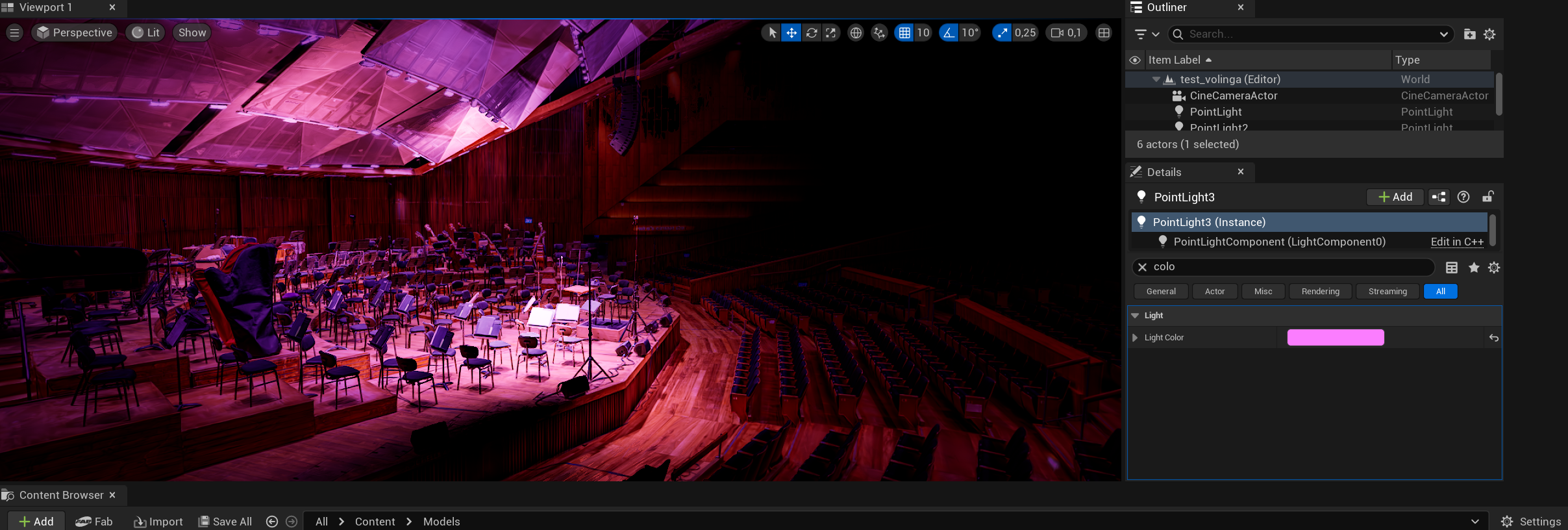
This page describes every available setting, its purpose, and where it can be found depending on the Volinga Renderer version.
¶ Settings Overview
The following table summarizes the main Volinga Renderer settings, their scope, location, and the version in which they were introduced.
| Available Since | Setting | Category | Location |
|---|---|---|---|
| v0.11.0 | Normal Method | Per-Actor | Radiance Field Actor → Radiance Field Model Settings |
| v0.11.0 | Embedded Normals | Per-Actor | Radiance Field Actor → Normal Method |
| v0.11.0 | Normal Axis Adjustment | Per-Actor | Radiance Field Actor → Embedded Normals Settings |
| v0.11.0 | Enable Proxy Mesh | Per-Actor | Radiance Field Actor |
| v0.11.0 | Proxy Mesh Contribution | Per-Actor | Volinga Mesh Actor |
| v0.11.0 | PLY Color Space | Per-Asset | Imported PLY Asset |
| v0.10.0 | Ambient Light | Per-Actor | Radiance Field Actor → Radiance Field Model Settings |
| v0.10.0 | Lower Alpha Threshold | Per-Actor | Radiance Field Actor → Radiance Field Model Settings |
| v0.10.0 | Upper Alpha Threshold | Per-Actor | Radiance Field Actor → Radiance Field Model Settings |
| v0.10.0 | Minimum Screen Area Threshold | Per-Actor | Radiance Field Actor → Radiance Field Model Settings |
| v0.10.0 | Minimum Gaussian Opacity Threshold | Per-Actor | Radiance Field Actor → Radiance Field Model Settings |
| v0.10.0 | Current Frame | Animation | Radiance Field Actor → Radiance Field Animation Settings |
| v0.10.0 | Frame Count | Animation | Radiance Field Actor → Radiance Field Animation Settings |
| v0.10.0 | Frame Start | Animation | Radiance Field Actor → Radiance Field Animation Settings |
| v0.10.0 | Frame End | Animation | Radiance Field Actor → Radiance Field Animation Settings |
| v0.10.0 | Play | Animation | Radiance Field Actor → Radiance Field Animation Settings |
| v0.9.0 | Additive Lighting | Global | Volinga Toolbar |
| v0.8.0 | Render Mode | Global | Volinga Toolbar → Settings |
| v0.8.0 | Render Pass Mode | Global | Volinga Toolbar → Settings |
| v0.8.0 | Freeze Cull Volumes | Global | Volinga Toolbar → Settings |
¶ Volinga Toolbar Settings
The Volinga Toolbar contains rendering settings that apply globally across the project.
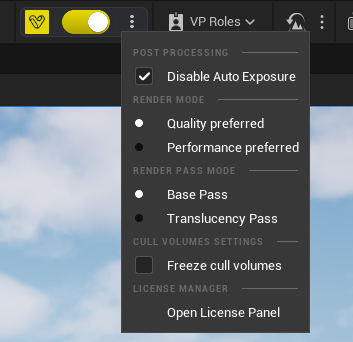
Unlike per-actor settings, these options affect every Gaussian Splat rendered in the current Unreal Engine project.
Settings that require independent control for individual Gaussian Splats are configured directly from their corresponding actors.
¶ Additive Lighting
The Volinga Plugin allows Radiance Field Actors to interact with Unreal Engine lighting.
This feature, called Additive Lighting, enables Unreal Engine lights to illuminate Gaussian Splats while preserving the lighting originally captured during the creation of the asset.
By default, Additive Lighting is disabled.
It can be enabled or disabled at any time using the Additive Lighting Toggle located in the Volinga Toolbar.
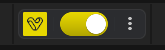
When disabled, Gaussian Splats are rendered exclusively using their original captured lighting.
When enabled, Unreal Engine lighting contributes to the final rendered result according to the normal and material information configured for each Radiance Field Actor.
¶ Render Settings
¶ Render Mode
-
Quality Preferred: Optimizes rendering for the highest visual fidelity, prioritizing detail and accuracy over frame rate.
-
Performance Preferred: Optimizes rendering for higher frame rates, prioritizing speed over visual detail. This mode is suitable for real-time previews or less powerful hardware.
¶ Render Pass Mode
-
Base Pass: Renders the main opaque geometry, capturing the primary visual elements of the scene.
-
Translucency Pass: Renders transparent or semi-transparent objects, ensuring proper blending with the scene. This improves the integration of Gaussian Splats with the sky and other translucent components.
¶ Cull Volume Settings
- Freeze Cull Volumes: Keeps the current culling volumes static, preventing dynamic updates during playback or camera movement. This can be useful for maintaining consistent rendering behavior and optimizing performance.
¶ Radiance Field Model Settings
Several rendering settings are stored independently for each Radiance Field Actor, allowing Gaussian Splats within the same level to use different rendering configurations.
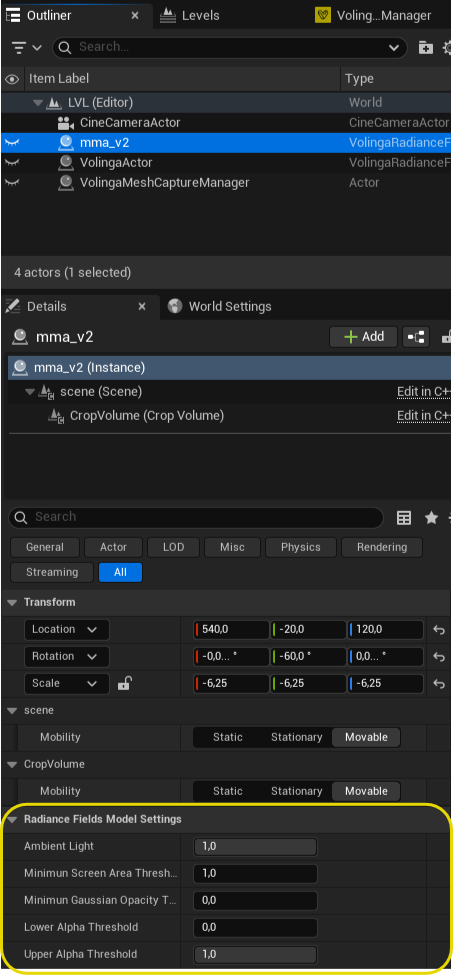
Radiance Field Model Settings are available in the Details panel of each Radiance Field Actor.
Changes made to these settings affect only the selected actor and do not modify other Gaussian Splats in the scene.
¶ Ambient Light
Controls how much of the existing color in the Radiance Field Actor contributes as emissive color.
- A value of 0 means no emissive contribution.
- A value of 1 means the original color is fully emissive.
¶ Lower and Upper Alpha Thresholds
Allow Gaussians below or above specified alpha limits to be filtered from the rendered result.
These settings can be particularly useful for removing unwanted Gaussians around the boundaries of an asset, especially in outdoor captures.
¶ Minimum Screen Area Threshold
Defines the minimum projected radius a Gaussian can have in the final image, measured in pixels.
For example, when set to 1, Gaussians whose projected size is smaller than one pixel are enlarged to meet the minimum threshold.
Setting this value to 0 can generally improve performance when a minimum projected size is not required.
¶ Minimum Gaussian Opacity Threshold
Defines the minimum opacity required for a Gaussian to be rendered.
Increasing this value filters out low-opacity Gaussians and can improve rendering performance. However, setting the threshold too high may remove relevant Gaussian information and introduce visual artifacts.
¶ Normal Method
In Volinga Renderer v0.11.0 and later, normal configuration is controlled independently for each Radiance Field Actor rather than globally for the entire level.
The Normal Method dropdown determines the source of the normal information used by that Gaussian Splat.
This allows multiple Gaussian Splat assets within the same scene to use different normal configurations according to their individual requirements.
Normals are used by the Volinga Renderer to determine how Gaussian Splats respond to Unreal Engine lighting when Additive Lighting is enabled.
The available Normal Methods are:
- Embedded Normals
- Approximated Normals
- Inverse Approximated Normals
- No Normals
Proxy Mesh is not a Normal Method.
Proxy Mesh is enabled independently and can be combined with the selected Normal Method. See the Proxy Mesh Settings section below.
¶ Embedded Normals
Embedded Normals uses normal information stored directly inside the NVOL asset.
NVOL models trained with normal data can embed this information as part of the asset, allowing the Volinga Renderer to use the normals generated during the training process instead of estimating them at runtime.
When an NVOL asset containing normal data is loaded into Unreal Engine, Embedded Normals is automatically selected as the Normal Method.
If the loaded NVOL does not contain embedded normal information, the Plugin automatically uses Approximated Normals instead.
The automatically selected method can always be changed manually from the Radiance Field Actor properties.
Automatic Normal Method Selection
- NVOL with embedded normal data → Embedded Normals
- NVOL without embedded normal data → Approximated Normals
The automatically selected method can be manually overridden for each Radiance Field Actor.
¶ Normal Axis Adjustment
Selecting Embedded Normals exposes additional properties for adjusting how the embedded normal data is interpreted.
These controls allow the user to adjust the normal orientation per axis directly from the Radiance Field Actor.
This is useful when the coordinate convention or orientation of the source normal data does not match the expected orientation inside Unreal Engine.
These adjustments are applied at the actor level and do not require the NVOL asset to be regenerated.
Normal axis adjustment controls are only available when Embedded Normals is selected.
¶ Approximated Normals
Approximated Normals generates estimated surface normals directly from the Gaussian representation at runtime.
This method does not require normal information to be embedded in the NVOL asset and provides a practical balance between lighting quality, compatibility, and performance.
It is also used as the automatic fallback method when an NVOL asset does not contain embedded normal information.
Approximated Normals are particularly useful for existing NVOL assets created without normal data or for other Gaussian Splat assets where embedded normals are unavailable.
¶ Inverse Approximated Normals
Inverse Approximated Normals uses the opposite orientation of the normals generated by the Approximated method.
Depending on the capture, reconstruction, and orientation of the Gaussian representation, approximated normals may occasionally produce lighting that appears inverted or inconsistent with the expected surface orientation.
In these situations, Inverse Approximated Normals can be used to reverse the generated normal direction without modifying or regenerating the source asset.
¶ No Normals
No Normals disables the normal information generated or provided directly by the Gaussian Splat.
This option can be used when normal-based relighting is not required or when the desired rendering workflow does not require normals from the Gaussian asset itself.
Proxy Mesh functionality remains independently configurable and can be combined with the actor configuration as required.
¶ Embedded Material Properties
NVOL assets can contain additional material information generated during training in Volinga Suite.
Supported embedded properties include:
- Normals
- Roughness
- Metallic
- Specular
When these properties are available in the NVOL asset, the Volinga Plugin can use them directly in Unreal Engine.
¶ Preparing Material Properties in Volinga Suite
When generating an NVOL with additional material properties, the corresponding source maps must be stored in dedicated folders located at the same directory level as the source image folder.
Use the following folder names:
Dataset/
├── images/
├── normals/
├── roughness/
├── metallic/
└── specular/
Each property folder must contain the corresponding maps for the source images.
¶ Normals
Normal maps placed in the normals folder can be embedded into the NVOL asset during training.
Once imported into Unreal Engine, these normals become available through the Embedded Normals option in the Radiance Field Actor's Normal Method dropdown.
When embedded normal data is detected, the Plugin automatically selects Embedded Normals as the initial Normal Method.
For information about using and adjusting embedded normals inside Unreal Engine, see the Normal Method → Embedded Normals section above.
¶ Roughness, Metallic, and Specular
Roughness, Metallic, and Specular represent single-channel material properties and must therefore be provided as grayscale images.
When these properties are embedded in an NVOL asset, they are automatically available to the corresponding Radiance Field Actor.
Embedded Roughness, Metallic, and Specular properties are always enabled when present in the NVOL asset and cannot be individually disabled from the actor.
Important
The property folder names must be exactly:
normals,roughness,metallic, andspecularRoughness, Metallic, and Specular maps must be provided as grayscale images.
¶ Proxy Mesh Settings
The Proxy Mesh workflow provides an additional source of geometric and material information that can be combined with the Gaussian Splat rendering pipeline.
In Volinga Renderer v0.11.0 and later, Proxy Mesh is no longer treated as a selectable Normal Method.
Instead, Proxy Mesh functionality is enabled independently from the Radiance Field Actor, while the associated Volinga Mesh Actor controls how the Proxy Mesh contributes to the Gaussian Splat.
This architecture allows Proxy Mesh information to be combined with the other Normal Methods rather than replacing them.
Important
Proxy Mesh and Normal Method are independent settings.
Enabling Proxy Mesh does not require selecting a specific Proxy Mesh normal mode. The Gaussian Splat can continue using Embedded, Approximated, Inverse Approximated, or No Normals while the Proxy Mesh provides additional information according to its configuration.
¶ Enable Proxy Mesh
The Enable Proxy Mesh checkbox is available on the Radiance Field Actor.
Enabling this option allows the selected Gaussian Splat to use information provided by a corresponding Volinga Mesh Actor.
Because this setting is configured per Radiance Field Actor, Proxy Mesh interaction can be enabled or disabled independently for each Gaussian Splat in the level.
This makes it possible to combine Gaussian Splats with different Proxy Mesh requirements within the same Unreal Engine scene.
¶ Volinga Mesh Actor
The Volinga Mesh Actor controls how Proxy Mesh information is applied to the Gaussian Splat.
Rather than using Proxy Mesh exclusively as a source of normals, the new workflow allows the Proxy Mesh to contribute different types of surface information.
The Proxy Mesh can be configured to affect:
- Normals
- Materials
- Normals and Materials
This allows the role of the Proxy Mesh to be adapted to the requirements of each asset.
¶ Normals
When configured to affect Normals, the Proxy Mesh contributes its surface orientation information to the Gaussian Splat lighting workflow.
This can be useful when the mesh provides a more stable or geometrically accurate representation of the scene surfaces.
¶ Materials
When configured to affect Materials, the Proxy Mesh contributes material information without requiring it to control the normal configuration of the Gaussian Splat.
This allows the selected Normal Method on the Radiance Field Actor to remain independent from the material contribution provided by the Proxy Mesh.
¶ Normals and Materials
When configured to affect Normals and Materials, the Proxy Mesh contributes both types of information to the Gaussian Splat.
This provides the most complete integration between the Proxy Mesh and the Gaussian representation.
¶ Combining Proxy Mesh and Normal Methods
Because Proxy Mesh is configured independently, it can be used together with the Normal Method selected on the Radiance Field Actor.
For example, an NVOL asset can use Embedded Normals while also having Proxy Mesh enabled for additional material or normal-related processing.
Likewise, different Radiance Field Actors within the same level can use different combinations of:
- Normal Method
- Proxy Mesh enabled or disabled
- Proxy Mesh contribution mode
This per-actor workflow provides significantly more control when building scenes composed of multiple Gaussian Splat assets with different lighting and material requirements.
For a complete Proxy Mesh workflow, see:
Tutorial — Proxy Mesh Based Normals
¶ PLY Color Space
In Volinga Renderer v0.11.0 and later, users can explicitly specify the color space of imported PLY Gaussian Splat assets.
This allows the Volinga Renderer to correctly interpret color information from PLY assets originating from different capture, training, and color-management pipelines.
The following color spaces are supported:
- S-Log3
- ACES2065-1
- ACEScg
- sRGB
Selecting the appropriate color space ensures that the PLY color data is interpreted correctly before being integrated into the Unreal Engine rendering pipeline.
Important
Select the color space that corresponds to the color encoding of the source PLY data.
Selecting an incorrect color space may result in unexpected brightness, contrast, or color reproduction.
¶ Radiance Field Animation Settings (4DGS)
Radiance Field Animation Settings are available only for animated Gaussian Splats (4DGS).
Unlike static Gaussian Splats (3DGS), a 4DGS asset contains a sequence of Gaussian frames that can be played back in real time, allowing animated volumetric content to be rendered directly inside Unreal Engine.
These settings can be found in the Details panel of every Radiance Field Actor that references a 4DGS asset.
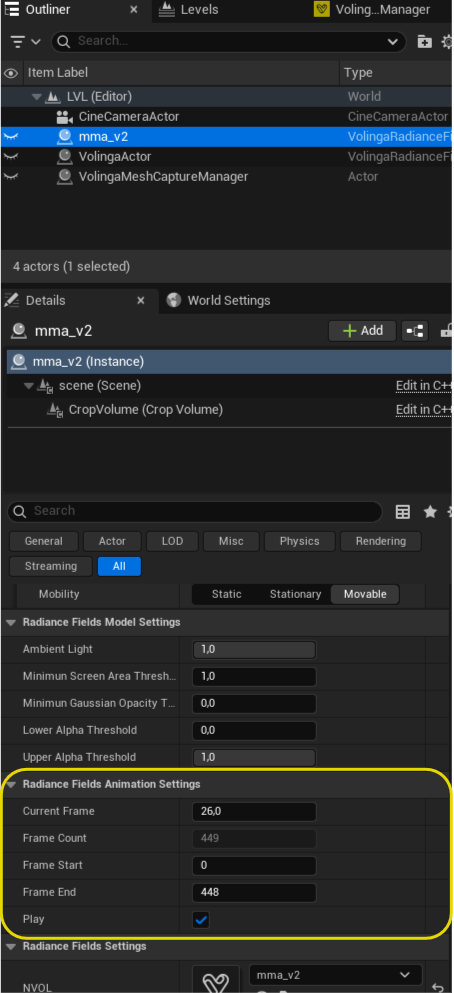
Radiance Field Animation Settings are available from Volinga Renderer v0.10.0 and are only displayed when a 4D Gaussian Splat (4DGS) is assigned to the actor.
¶ Current Frame
Specifies the frame currently displayed by the animation.
The value can be modified manually to inspect any individual frame of the sequence.
This property is also exposed to Unreal Engine Sequencer, allowing frame-accurate animation control during cinematics and virtual production workflows.
¶ Frame Count
Displays the total number of frames contained in the animation sequence.
This is a read-only property and is provided for reference only.
¶ Frame Start
Defines the first frame used during playback.
Changing this value allows playback to begin from any point within the original animation without modifying the source asset. This can be useful for trimming unwanted frames at the beginning of the sequence.
¶ Frame End
Defines the last frame used during playback.
Reducing this value allows playback to stop before reaching the end of the original animation.
Together, Frame Start and Frame End provide a simple way to restrict playback to a specific section of the animation.
¶ Play
Starts or pauses animation playback.
When disabled, the animation remains fixed on the current frame. This is particularly useful when inspecting individual frames or when animation playback is driven externally through Sequencer.
¶ Sequencer Integration
Animation-related properties are integrated with Unreal Engine Sequencer, allowing animated Gaussian Splats to be incorporated into cinematic and virtual production workflows using Unreal Engine's native animation tools.
The following property can be animated directly from Sequencer:
- Current Frame
In addition, several Volinga components are exposed to Sequencer, including:
- Radiance Field Model Settings
- Crop Volume
- Cull Actor
- Volinga Mesh
This enables timeline-based control over Gaussian Splats and makes it possible to create complex cinematic sequences without additional scripting.
¶ Version Compatibility
The location and behavior of several Volinga Renderer settings have changed as the Plugin has evolved.
| Version | Main Changes |
|---|---|
| v0.11.0 and later | Normal Method becomes per-actor. Embedded Normals and normal axis adjustment are introduced. Proxy Mesh is redesigned as an independent per-actor system that can contribute normals, materials, or both. Embedded material properties and PLY color-space selection are supported. |
| v0.10.x | Ambient Light and Post Processing settings become per-actor. Normal Generation remains global. 4DGS animation settings and Sequencer integration are introduced. |
| v0.9.x | Additive Lighting and normal-based relighting are available through global settings. |
| v0.8.x | Render Mode, Render Pass Mode, and Cull Volume controls are available as global settings. |
¶ Legacy Settings
The organization of rendering settings has changed across different versions of the Volinga Renderer.
¶ Changes Introduced in v0.10.0
Several parameters that were previously configured globally through the Volinga Toolbar were moved to individual Radiance Field Actors.
| Previous Global Setting | New Location |
|---|---|
| Ambient Light | Radiance Field Model Settings |
| Lower Alpha Threshold | Radiance Field Model Settings |
| Upper Alpha Threshold | Radiance Field Model Settings |
| Minimum Screen Area Threshold | Radiance Field Model Settings |
| Minimum Gaussian Opacity Threshold | Radiance Field Model Settings |
¶ Changes Introduced in v0.11.0
Normal and Proxy Mesh configuration were redesigned to provide independent control for each Gaussian Splat.
| Previous Behavior | New Behavior |
|---|---|
| Normal Generation configured globally | Normal Method configured per Radiance Field Actor |
| Approximated, Inverse Approximated, and No Normals applied globally | Normal Method selected independently for each actor |
| No Embedded Normals method | Embedded Normals available for NVOL assets containing normal data |
| No per-axis control for embedded normals | Embedded Normal orientation can be adjusted per axis |
| Proxy Mesh used as a global normal-generation method | Proxy Mesh enabled independently per Radiance Field Actor |
| Proxy Mesh primarily used for normals | Volinga Mesh can contribute Normals, Materials, or Normals and Materials |
| Normal Method and Proxy Mesh mutually represented through the same system | Proxy Mesh can be combined with the selected Normal Method |
| No embedded PBR material properties | NVOL supports embedded Roughness, Metallic, and Specular data |
| PLY color interpretation not user-selectable | PLY Color Space can be explicitly selected |
These changes allow scenes containing multiple Gaussian Splat assets to use independent combinations of normal, material, and Proxy Mesh configurations.
¶ License Settings
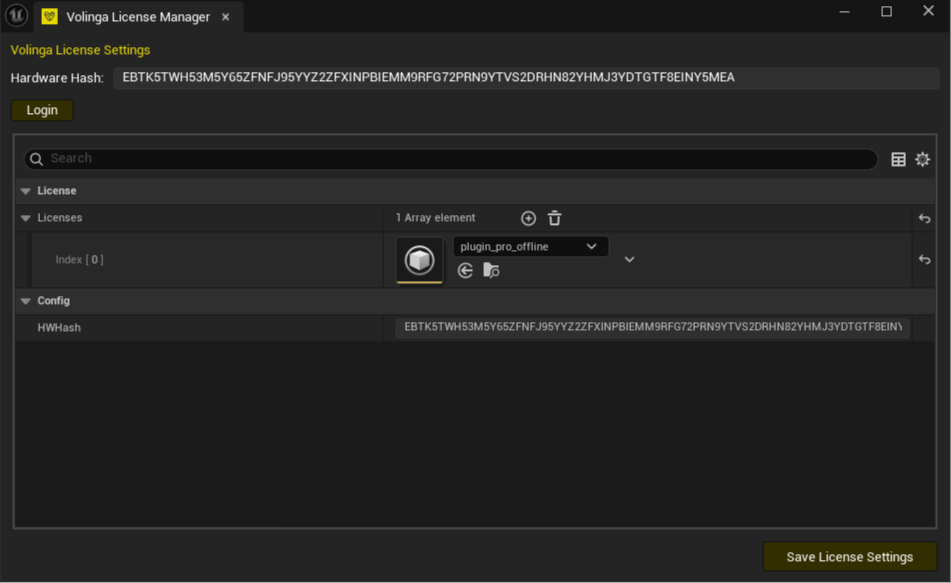
You can open the Volinga License Manager by clicking the Open License Panel button in the Volinga Toolbar dropdown menu.
For complete step-by-step guides on using the licensing system, see:
More details about the available licensing methods are available here:
How Licensing Works
Legacy Versions
The current licensing system is available from Volinga Plugin v0.8.x.
If you are using an earlier version, refer to the Tutorials section for the corresponding licensing workflow.
¶ Considerations
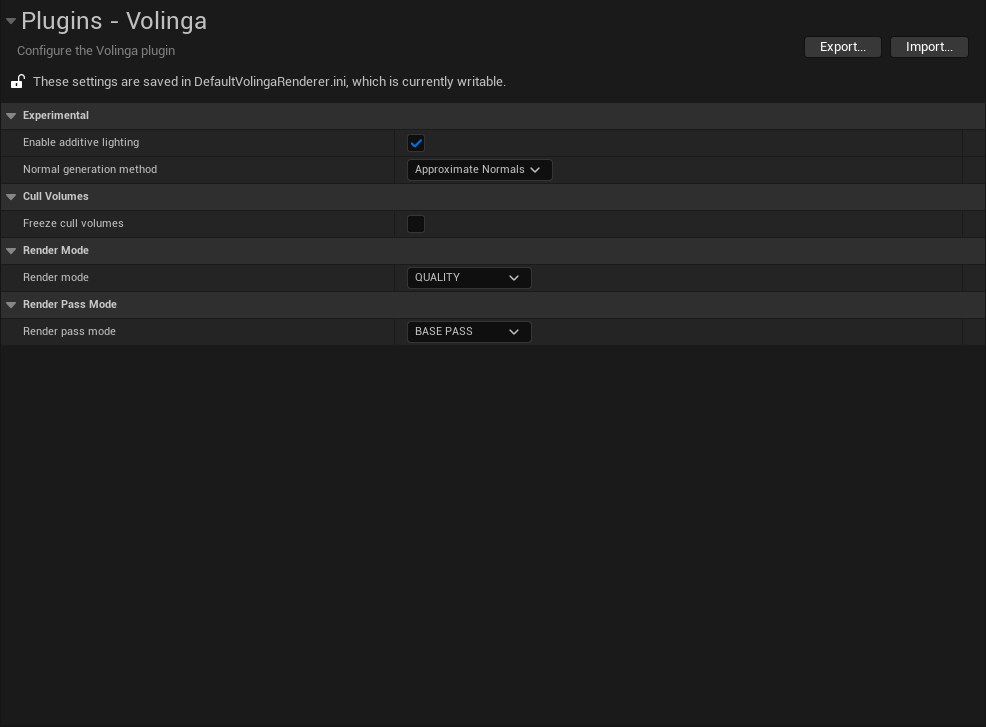
Some Volinga settings can also be accessed through:
Edit → Project Settings → Volinga
Important
We recommend configuring settings from the Volinga Toolbar or directly from the corresponding Volinga Actor whenever per-actor configuration is available.
Changing settings directly through Unreal Engine Project Settings may not synchronize correctly with the Volinga interface and could result in unexpected behavior.