¶ Licensing in Volinga Plugin
Volinga uses a seat-based licensing system, with seats consumed either online or offline depending on your plan and workflow.
Online Seats are consumed by signing in to your Volinga account and are not tied to a specific machine. Offline Seats are assigned to a specific machine using its hardware hash and can be used without an internet connection.
Users without a purchased seat can also access the Plugin in Trial mode by signing in to their Volinga account.
The Volinga Plugin for Unreal Engine supports the following licensing and access methods:
| Online Seats | Offline License | Trial | Deployment License | |
|---|---|---|---|---|
| Available for | Plugin Basic & Plugin Pro | Plugin Pro | Volinga accounts | Contact Volinga Sales |
| Machine-bound | No | Yes | No | Build machine only |
| Internet connection | Required | Not required | Required | Not required for distributed builds |
| Hardware Hash | Not required | Required | Not required | Required for the build machine |
| Activation | Sign in from the Plugin | License file | Sign in from the Plugin | Deployment license for the build environment |
| Device usage | Any device with an available seat | Assigned machine only | Any device | Build can be distributed to multiple devices |
| Watermark | No | No | Yes | No |
To manage your products, licenses, and seats, first sign in to the Volinga website.
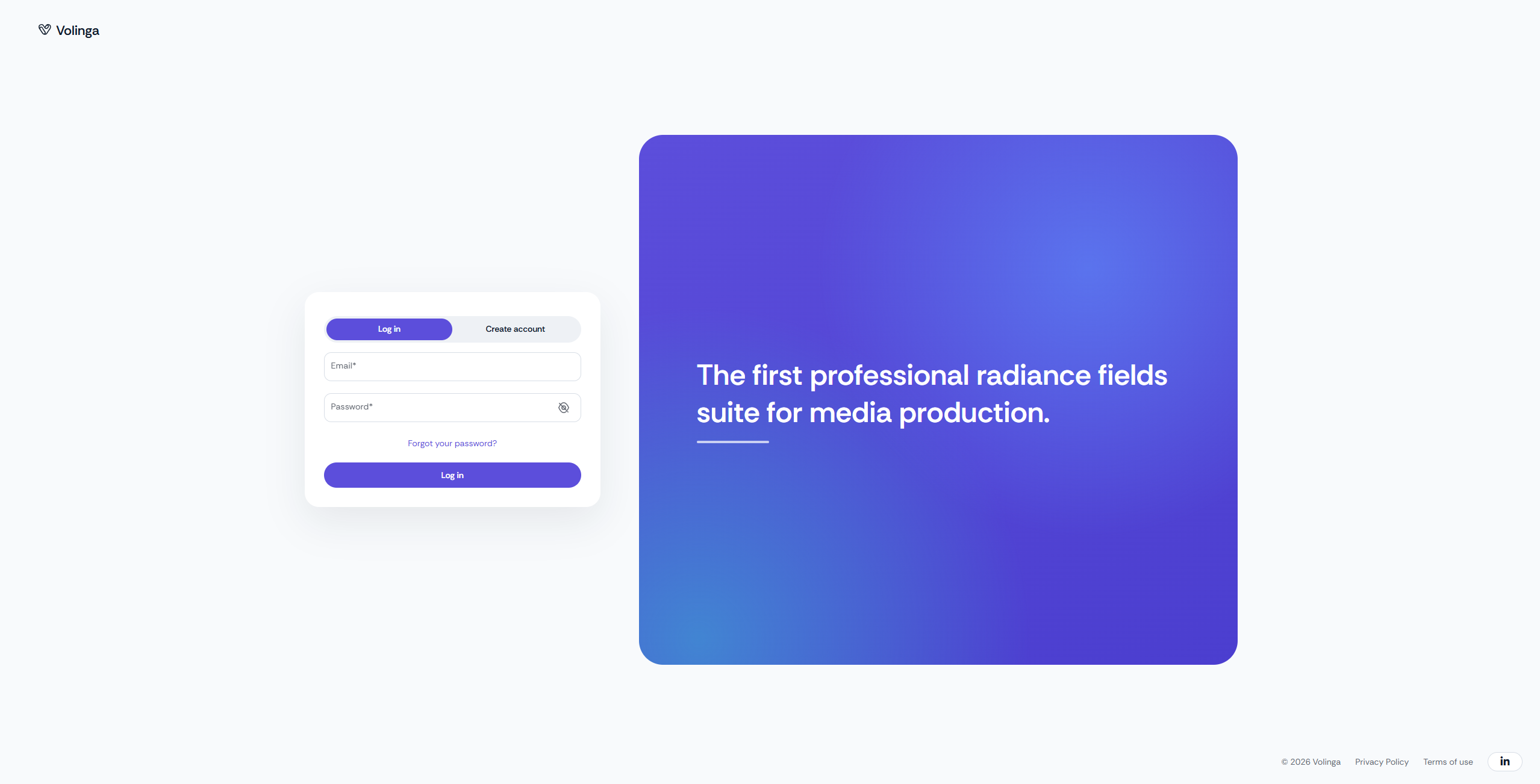
Once logged in, you can access your account information and view:
- The expiration date of your current plan.
- The products available for download.
- The licenses and seats associated with your account.

¶ Free Trial
Any user with a Volinga account can try the Volinga Plugin without purchasing a Plugin Basic or Plugin Pro seat.
To access the Trial, simply log in to your Volinga account from the License Panel inside the Unreal Engine Plugin. If your account does not have an available Basic or Pro Online Seat, the Plugin will automatically run in Trial mode.
Trial mode provides free and unlimited access to the Plugin features, with a watermark permanently displayed while the Trial is active.
No license file, hardware hash, or purchased seat is required to use the Trial — only a Volinga account and an active internet connection.
This allows users to install, explore, and evaluate the Plugin directly in Unreal Engine before purchasing a Basic or Pro seat.
You can create an account by clicking "Create an account" in the login screen or visiting: https://volinga.ai/login
¶ Offline Seat
Offline Seats are available for Plugin Pro and provide access to the full set of Pro features, including nDisplay. They are designed for professional production environments, including multi-node and multi-machine setups such as virtual production studios, while allowing each licensed machine to operate without requiring an active internet connection.
Unlike Online Seats, an Offline Seats is associated with a specific machine through its Hardware Hash.
Once the license file has been generated and activated, an internet connection is not required to use the Plugin.
¶ Offline Seats Considerations
- Offline Seats are available for Plugin Pro.
- Each license is bound to a specific machine using its Hardware Hash.
- The license file must be generated using the Hardware Hash of the machine where the Plugin will be used.
- A license generated for a different machine will not work.
- Hardware changes, such as replacing a hard drive or network adapter or adding certain virtual network interfaces, may change the Hardware Hash and invalidate the existing license.
- Always verify that the Hardware Hash associated with your license matches the target machine.
- Ensure that your license is valid and has not expired.
¶ How to Obtain the Hardware Hash
Before assigning a machine to an Offline License, you need to retrieve its Hardware Hash.
The Hardware Hash can be found in the License Manager panel of the Volinga Plugin inside Unreal Engine.
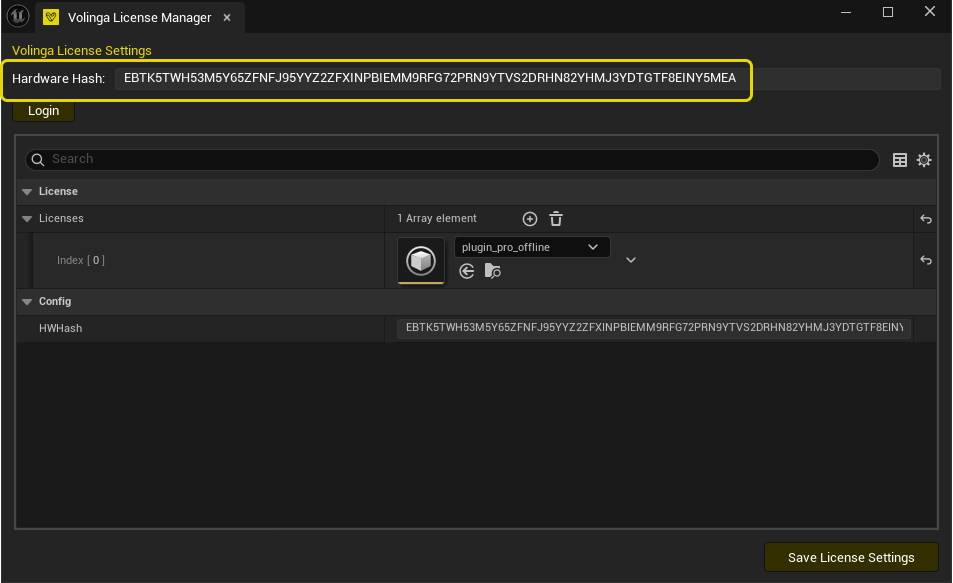
For detailed instructions, follow the tutorial corresponding to the Plugin version you are using:
The Hardware Hash must be retrieved from the same machine on which the Offline License will be used.
¶ How to Generate an Offline License File
Once you have obtained the Hardware Hash of the target machine, you can assign that machine to your Offline License and generate the corresponding license file.
¶ Open Licenses & Seats
Sign in to your Volinga account and navigate to the Licenses & Seats section.
Locate your Plugin Pro Offline License and click Assign Machine.
¶ Configure the Machine Assignment
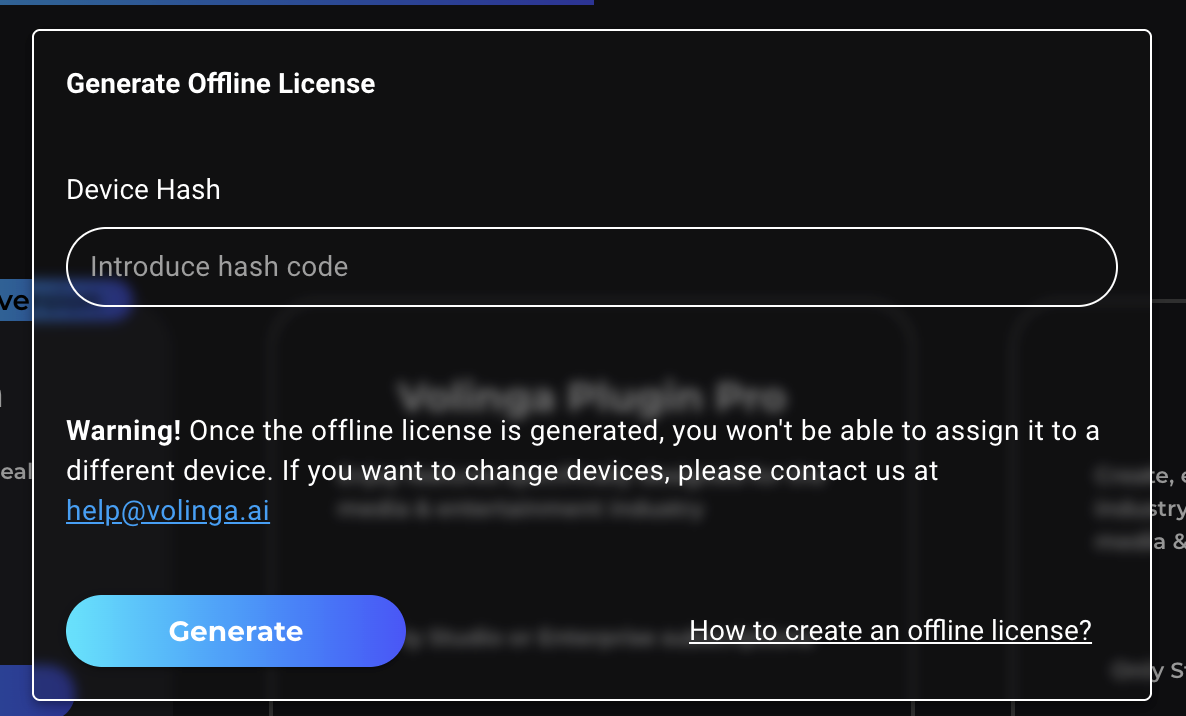
The Generate License File window will open in your browser.
Complete the following fields:
1. Device Hash
Enter the Hardware Hash of the machine you want to associate with the license.
You can find this value in the License Manager panel of the Volinga Plugin inside Unreal Engine.
For a step-by-step guide on retrieving the Hardware Hash, see the Hardware Hash tutorial.
2. Assignment Date
Select the date until which you want the machine to remain assigned to the license.
3. Generate
Review the information and click Generate to create the license file for the selected machine.
¶ Download the License File
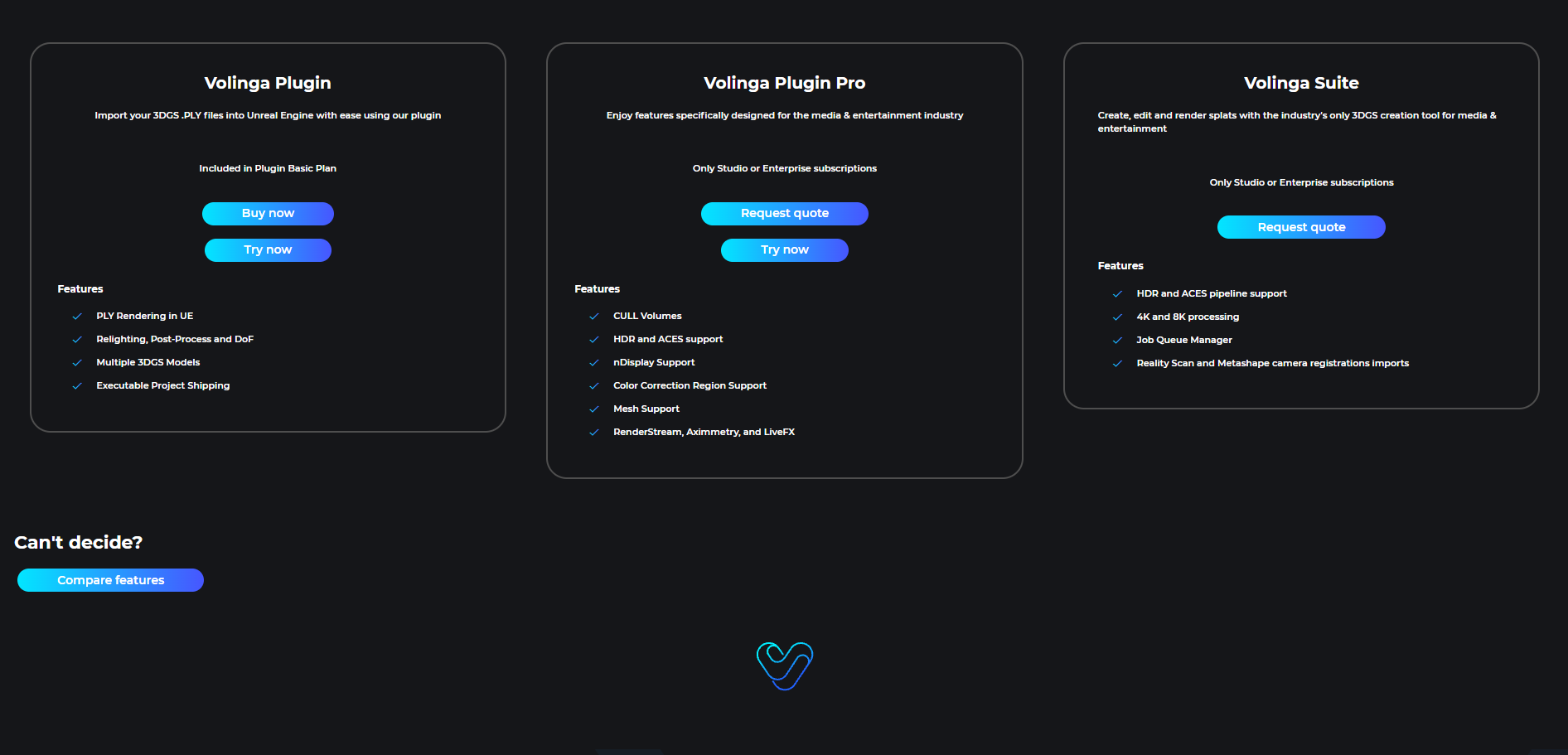
Once the license has been generated successfully, the Assign Machine button will be replaced by Download License.
 >
>
The Hardware Hash of the assigned machine will also be displayed alongside the license information.
Click Download License to download the generated license file.
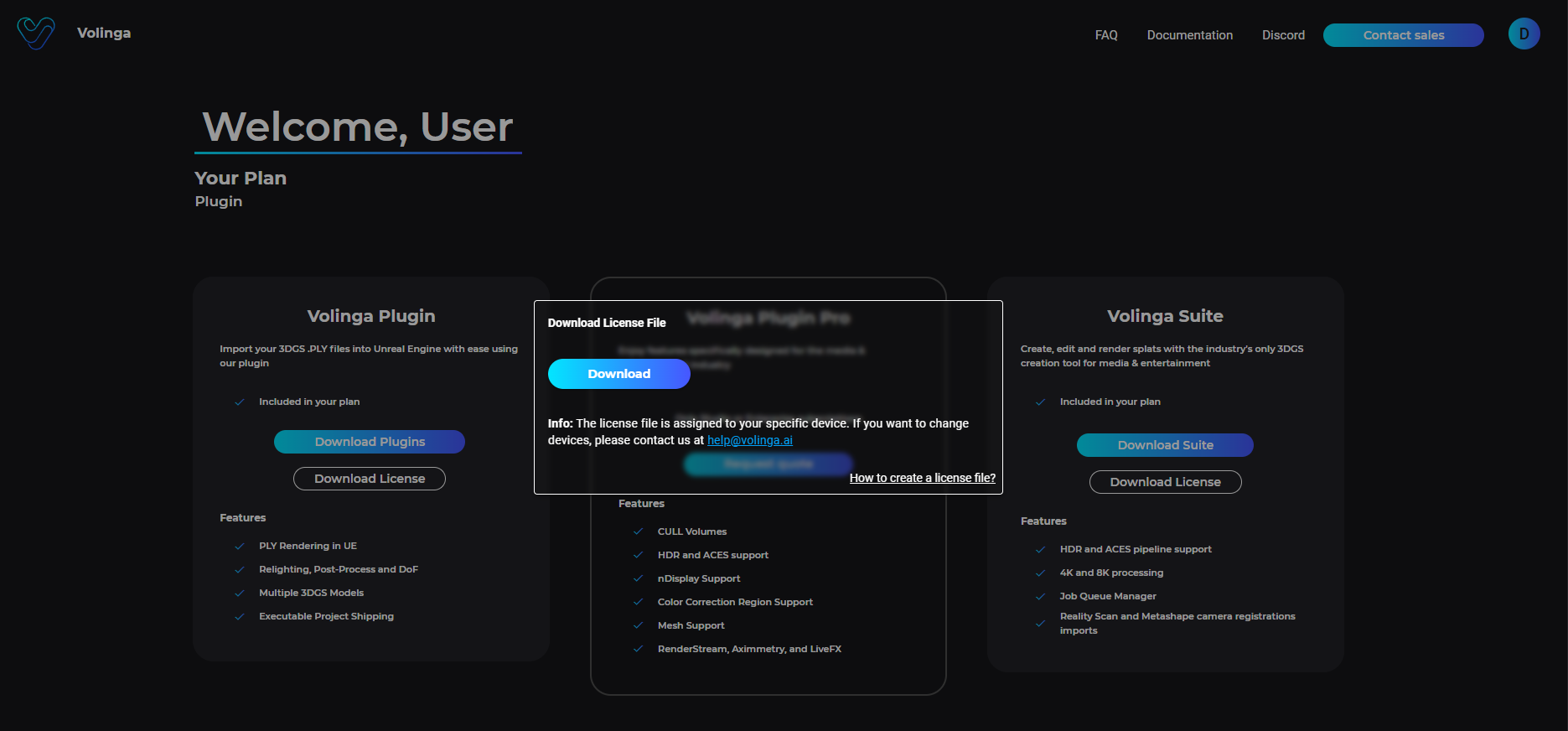
The downloaded license file is valid only for the machine whose Hardware Hash was used during the assignment process.
For instructions on importing and activating the downloaded license file inside Unreal Engine, see the Offline Licensing tutorial.
¶ Online Seats
Online Seats provide a flexible licensing method that is not tied to a specific machine or hardware hash.
Online Seats are available for both Plugin Basic and Plugin Pro plans. Instead of generating and installing a license file for a specific computer, users can access their license by signing in to their Volinga account directly from the Plugin.
When a user successfully logs in, one available Online Seat is consumed and assigned to that active session. This allows the Plugin to be used across different machines without having to generate a new machine-specific license.
¶ Online Seats Considerations
- Logging in consumes one Online Seat for the active Plugin session.
- Seats are associated with your Volinga account, rather than a specific machine or hardware hash.
- Each active Plugin session consumes one available seat.
- The Plugin can be used on different machines as long as the account has an available Online Seat.
- An active internet connection is required to authenticate the account and use an Online Seat.
- Seats are assigned when a user successfully logs in and are released when the corresponding session ends or the user signs out.
- If multiple users or sessions use the same Volinga account, each active session requires its own available seat.
¶ How to Log In
To use an Online Seat:
- Open the License Panel from the Volinga Plugin in Unreal Engine.
- Click the Login button.
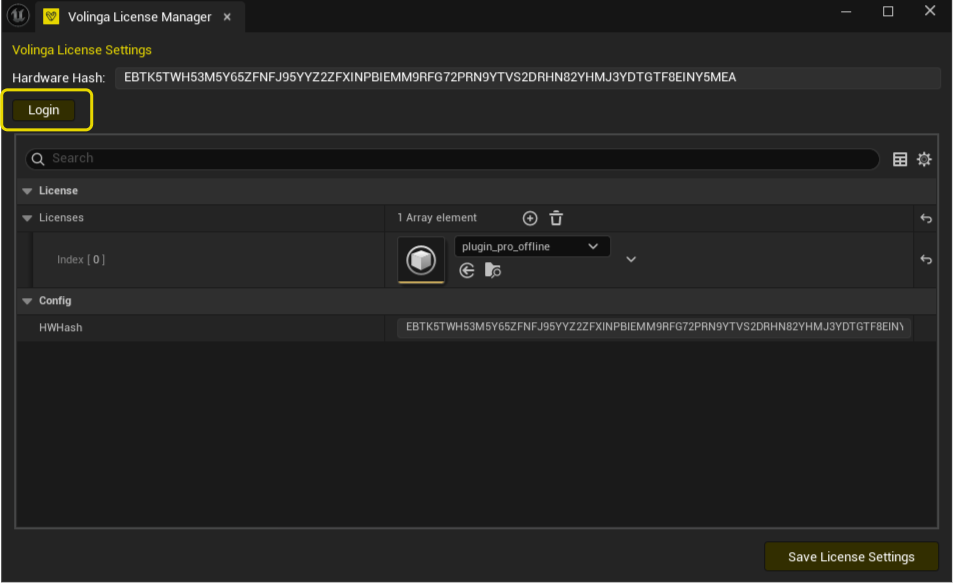
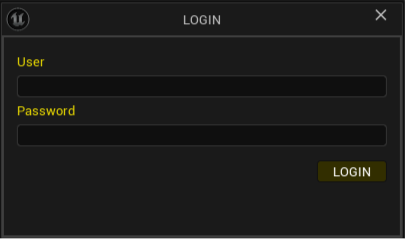
- A login window will open. Enter your Volinga account email/username and password.
- Click Login to authenticate your account.
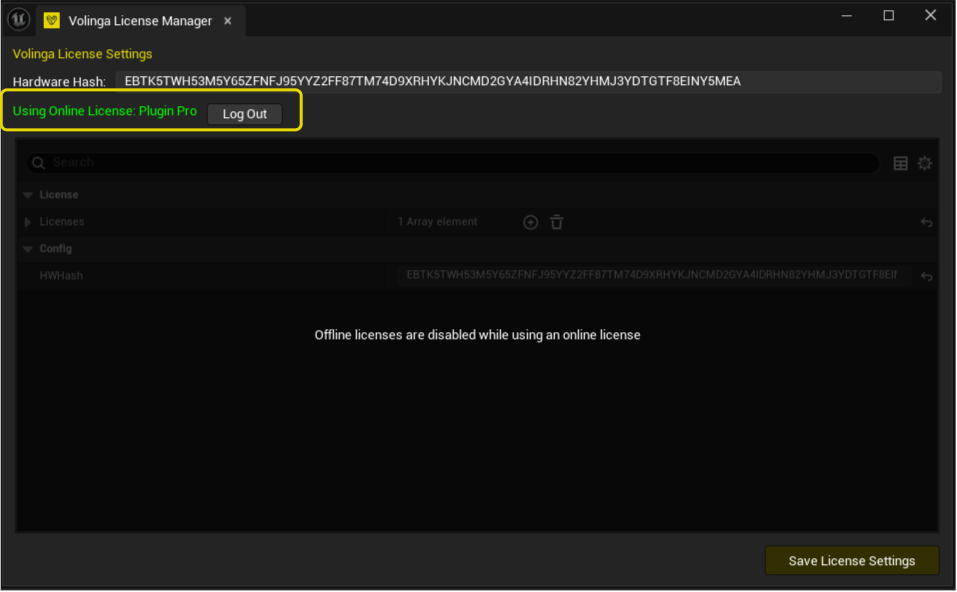
Once connected, the License Panel will display that the user is logged in, together with the type of seat currently being used.
You can also check your available and currently assigned seats from the License & Seats panel on the Volinga website.
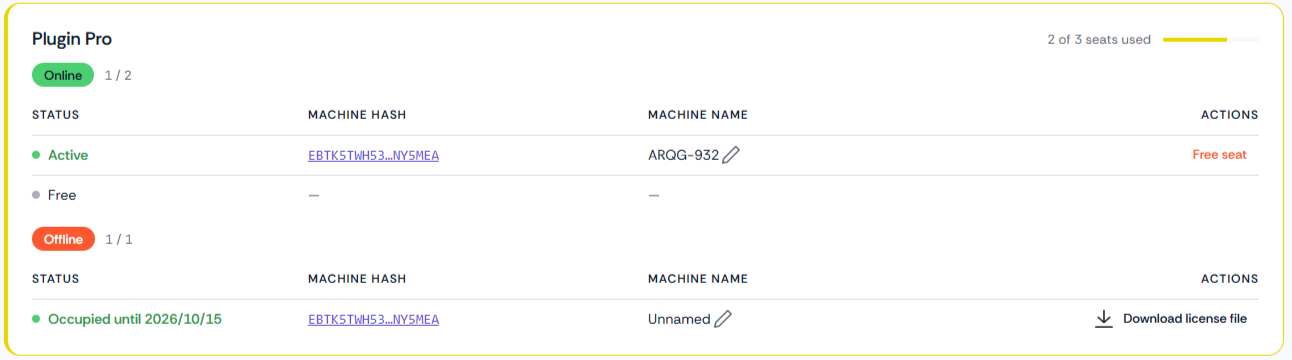
Seat Priority
When an account has Online Seats from multiple tiers, seats are consumed from the highest available tier first.
For example, if an account has both Plugin Pro and Plugin Basic seats, available Pro seats will be consumed before Basic seats as users log in and start additional sessions.
Important
Online Seats are available starting from Volinga Plugin v0.9.0.
For detailed instructions on signing in and activating an Online Seat from Unreal Engine, see the Online Licensing tutorial.
¶ Deployment Licenses
A Deployment License is intended for scenarios where a packaged Unreal Engine project needs to be distributed and run across multiple target devices without requiring an individual Volinga license for each machine.
Unlike a standard Offline License, the Deployment License is not bound to the machines where the packaged application will ultimately run. Instead, it is associated with the machine used to build and package the Unreal Engine project.
To generate a Deployment License, you must provide the Hardware Hash of the build machine. The licensed build environment can then be used to package the project for distribution across the target devices covered by your deployment agreement.
Important
The Hardware Hash is required for the machine used to build/package the project, not for each machine on which the resulting packaged application will run.
This means that target devices do not need to be individually assigned through their Hardware Hashes.
Deployment Licenses are intended for production and distribution workflows where the same packaged application needs to operate across multiple devices.
For licensing information, deployment requirements, or to request a Deployment License, contact salesteam@volinga.ai.
¶ Watermark System
The Volinga Plugin uses a watermark system to distinguish between licensed commercial use and evaluation or unlicensed content.
You can use the Volinga Plugin without purchasing a seat.
To remove the watermark, the appropriate licensing requirements must be met for both the Plugin and the assets used in the scene.
¶ Asset Licensing and Watermarks
NVOL assets, as well as assets in external formats such as PLY, SOG, or SPZ, can also affect watermark visibility.
When importing and rendering Gaussian assets, their licensing status depends on how they were generated. Assets created without a Volinga Suite license that includes commercial usage rights are considered unlicensed and will trigger a watermark when rendered.
Important
If an Unreal Engine scene contains one or more unlicensed NVOL or gaussian assets, the watermark will be displayed across the entire viewport, even if the rest of the assets in the scene are properly licensed.
For completely watermark-free rendering, every asset in the scene must meet its corresponding licensing requirements.
¶ Plugin Licensing and Watermarks
The Plugin's active entitlement also determines whether a watermark is displayed.
- No active commercial entitlement: The Plugin can still be used for evaluation, but a watermark will be displayed.
- Plugin Basic Online Seat: Provides access according to the features included in the Basic plan.
- Plugin Pro Online Seat: Provides access to the features included in the Pro plan.
- Plugin Pro Offline License: Provides Pro access on the machine associated with the license file without requiring an internet connection.
Using a feature that requires Plugin Pro without an active Pro entitlement may also result in a watermark or restricted functionality.
For watermark-free rendering, both conditions must be met:
- The Plugin must have the appropriate active commercial entitlement.
- All NVOL and PLY assets used in the scene must be properly licensed for commercial use.
¶ Common Watermark Issues
If a watermark is displayed unexpectedly, review the following considerations before reporting an issue.
¶ Possible corruption of DefaultVolingaRenderer.ini — v0.7.x
For Plugin version 0.7.x:
- Close your Unreal Engine project.
- Delete the following file:
[project folder]/Config/DefaultVolingaRenderer.ini
- Reopen the project.
- Reload your license from:
Edit → Project Settings → Volinga → License
¶ Using Pro Features Without a Pro Entitlement
Some features require Plugin Pro.
These may include:
- Cull Volume
- Proxy Mesh Lighting
- nDisplay
Attempting to use Pro-only functionality without the required entitlement may:
- Display a watermark.
- Limit the available functionality.
- Trigger a Plugin notification.
¶ NVOL and PLY Assets
If you experience unexpected watermark behavior:
- Test the scene with different NVOL or PLY files to determine whether the behavior is associated with a specific asset.
- If the watermark appears or disappears depending on the visible asset, verify how that asset was generated and whether it meets the applicable licensing requirements.
¶ Troubleshooting
Watermark is visible while using the Plugin without a license or seat
Cause: The Plugin is running without an active commercial entitlement.
Solution: Sign in with your Volinga account to continue evaluating the Plugin with a watermark, or activate an appropriate Online Seat or Offline License for watermark-free commercial use.
Watermark appears when using Pro-only features
Cause: The current account or active seat does not include Plugin Pro entitlement.
Affected features may include: Cull Volume, Proxy Mesh Lighting, nDisplay, and other Pro-only functionality.
Solution: Activate a Plugin Pro entitlement to use these features according to their licensing requirements.
Offline License does not work on another machine
Cause: Offline Licenses are bound to the Hardware Hash of the assigned machine.
Solution: Assign the appropriate target machine or obtain a licensing configuration suitable for your deployment.
Contact: salesteam@volinga.ai for multi-machine or deployment licensing requirements.
Offline License stopped working after a hardware change
Cause: Certain hardware or network configuration changes may modify the machine's Hardware Hash.
Solution: Check the current Hardware Hash in the Plugin's License Manager and compare it with the Hardware Hash associated with your Offline License.