¶ Training with Ignore Masks
Follow these steps to train a 3DGS model using Segment masks:
1. Create a New Asset
- Click + → New asset in the Content Browser.
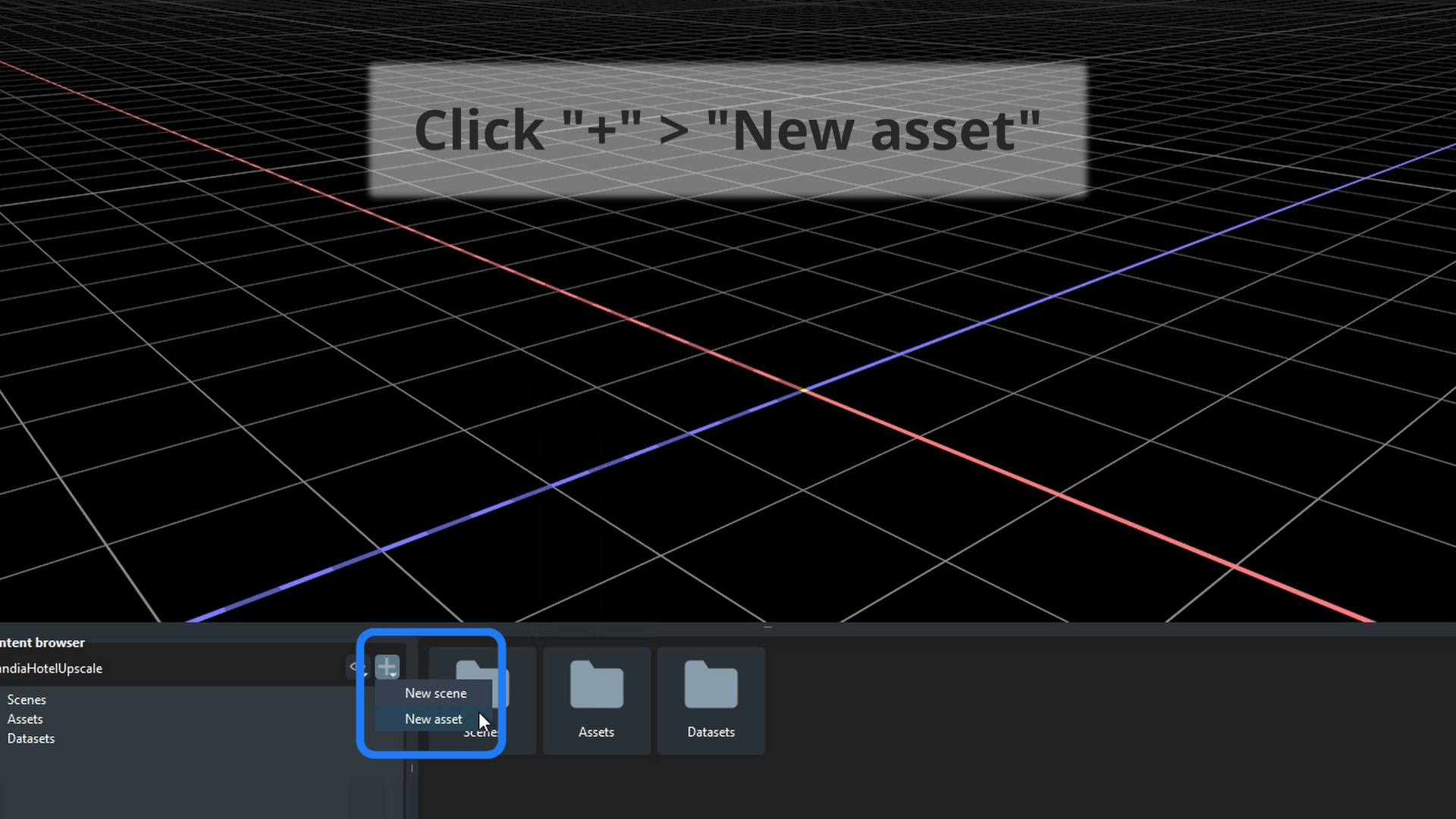
The New Asset Wizard opens, ready to add media datasets to Volinga Suite.
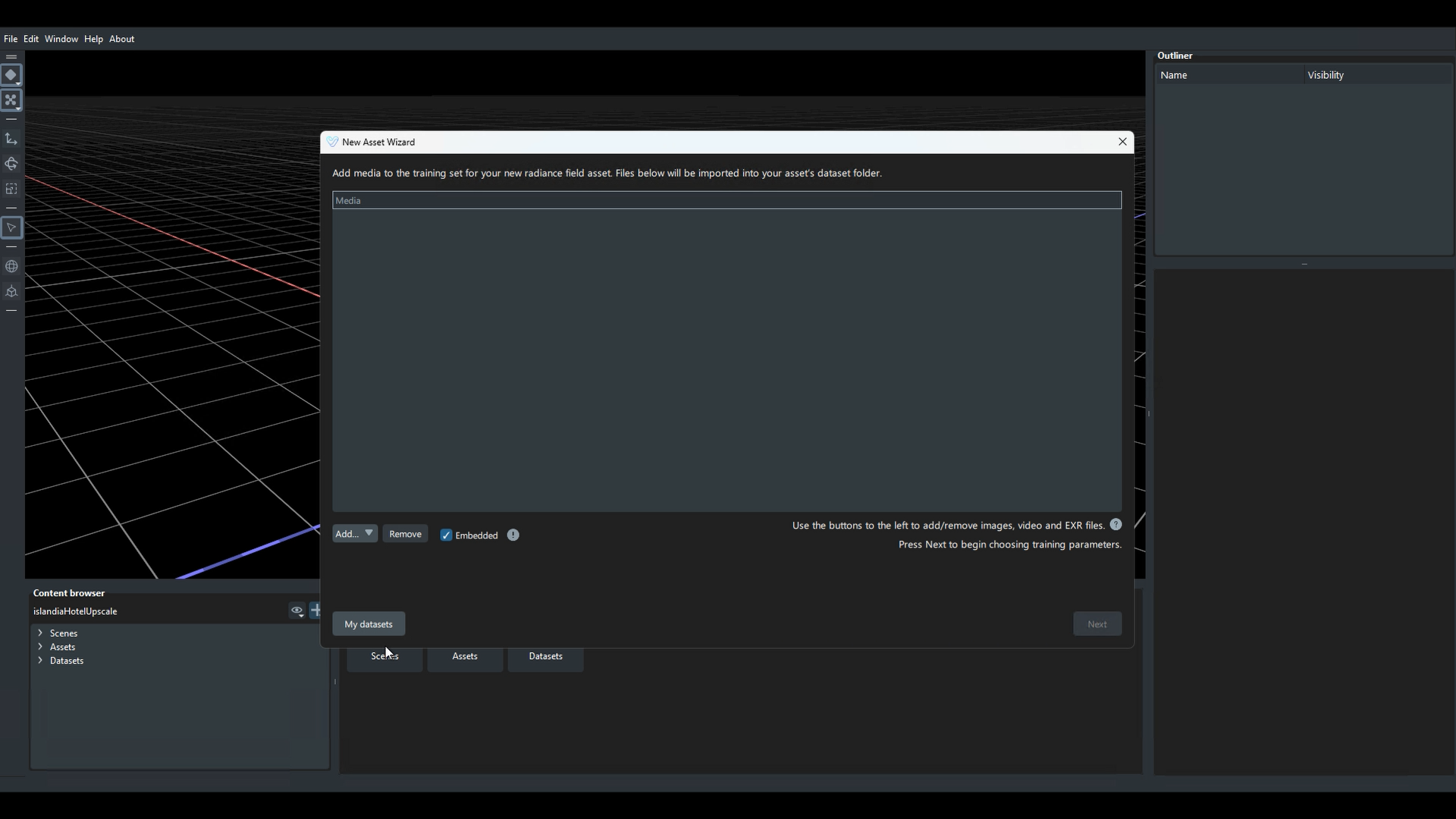
2. Import Media
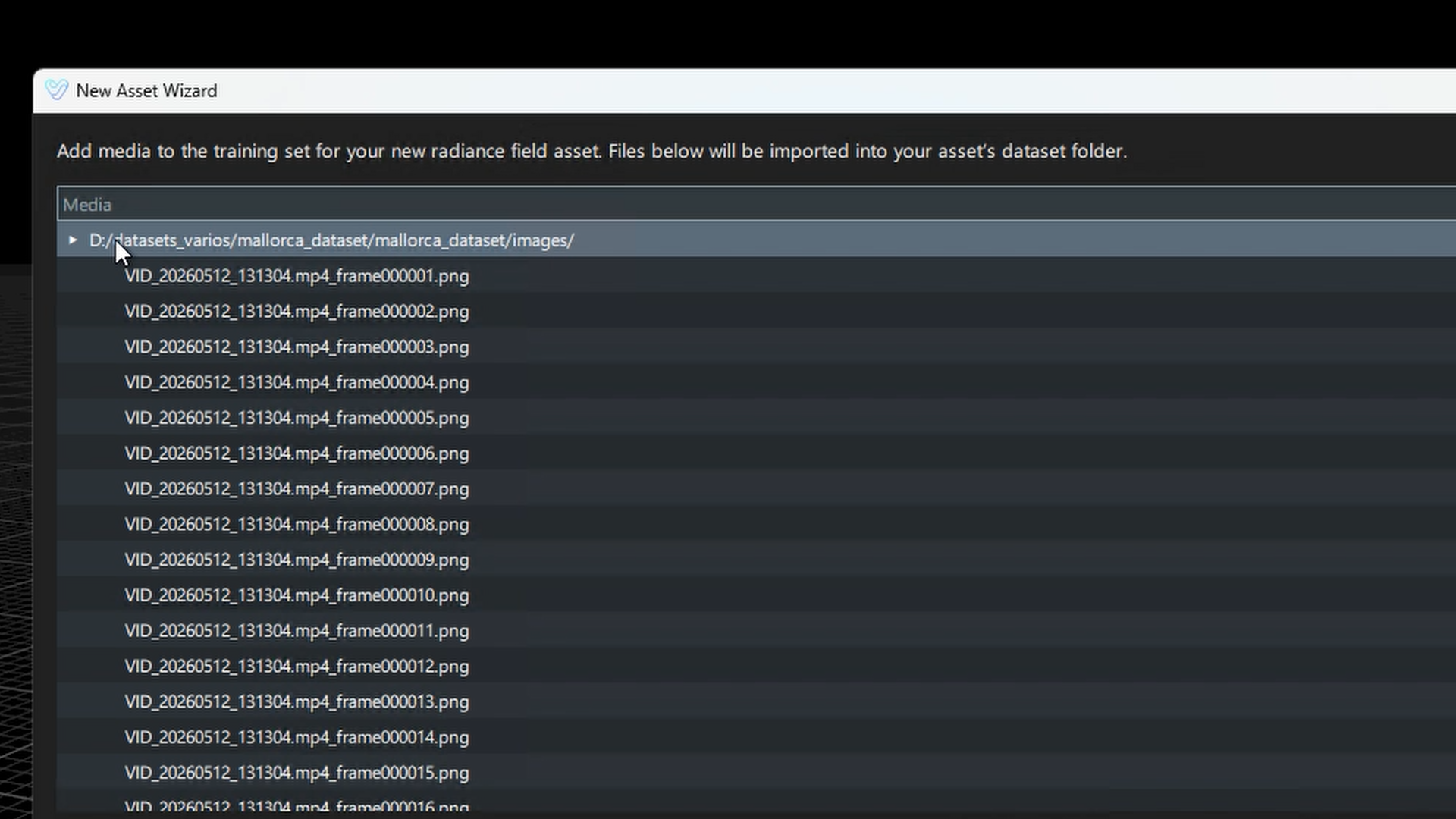
- Drag and drop the images folder into the Media list.
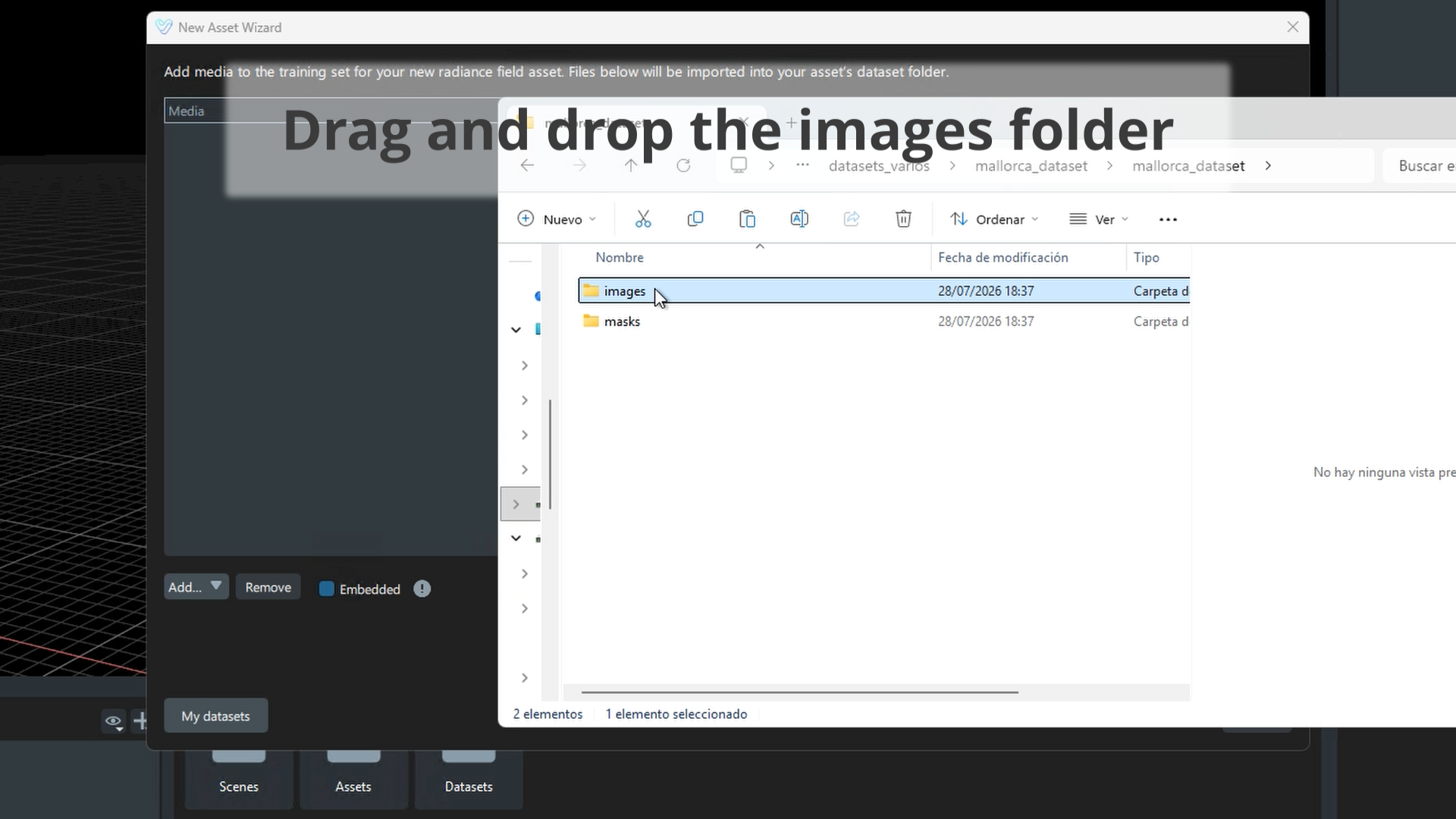
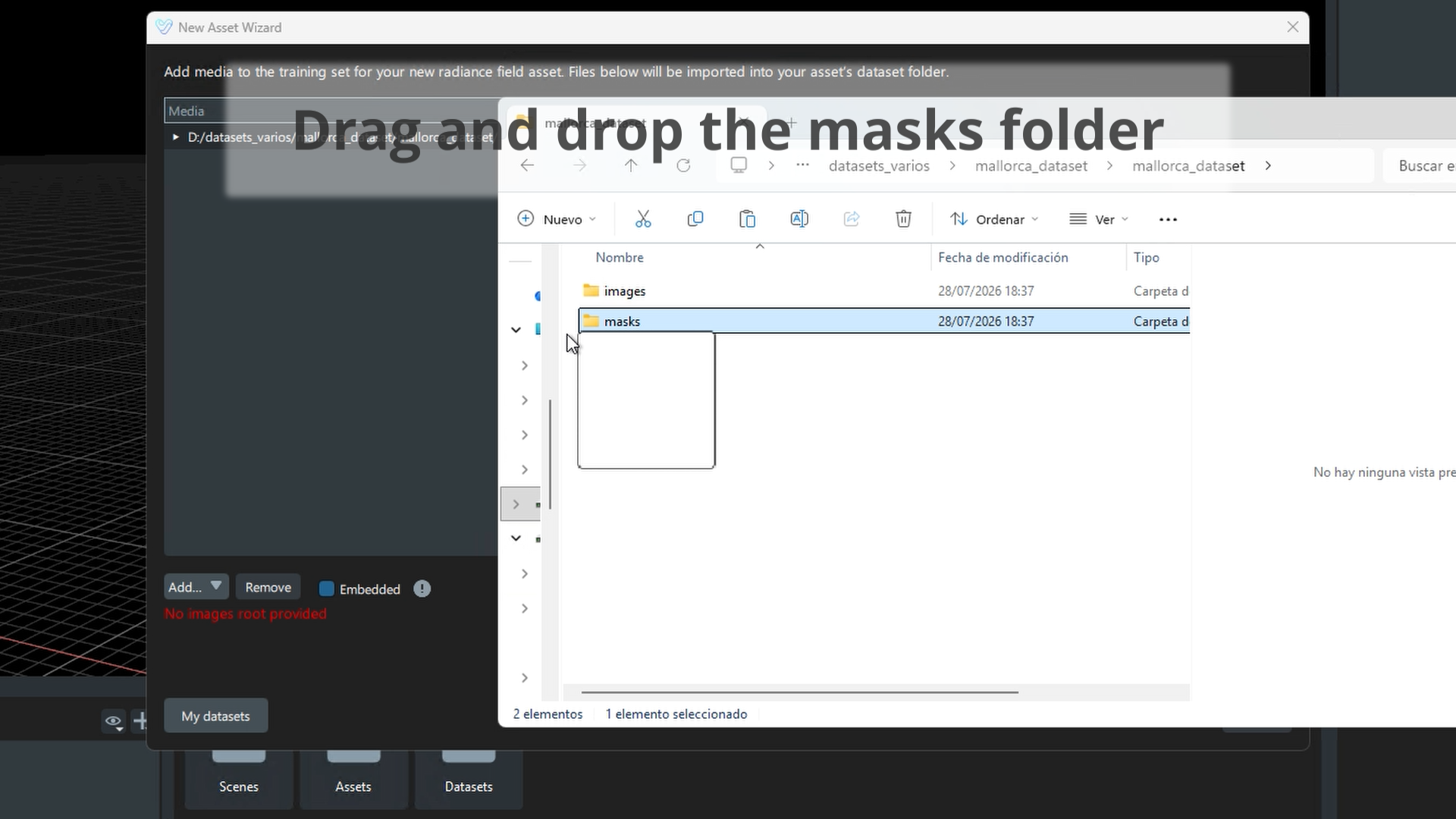
- Drag and drop the masks folder into the Media list.
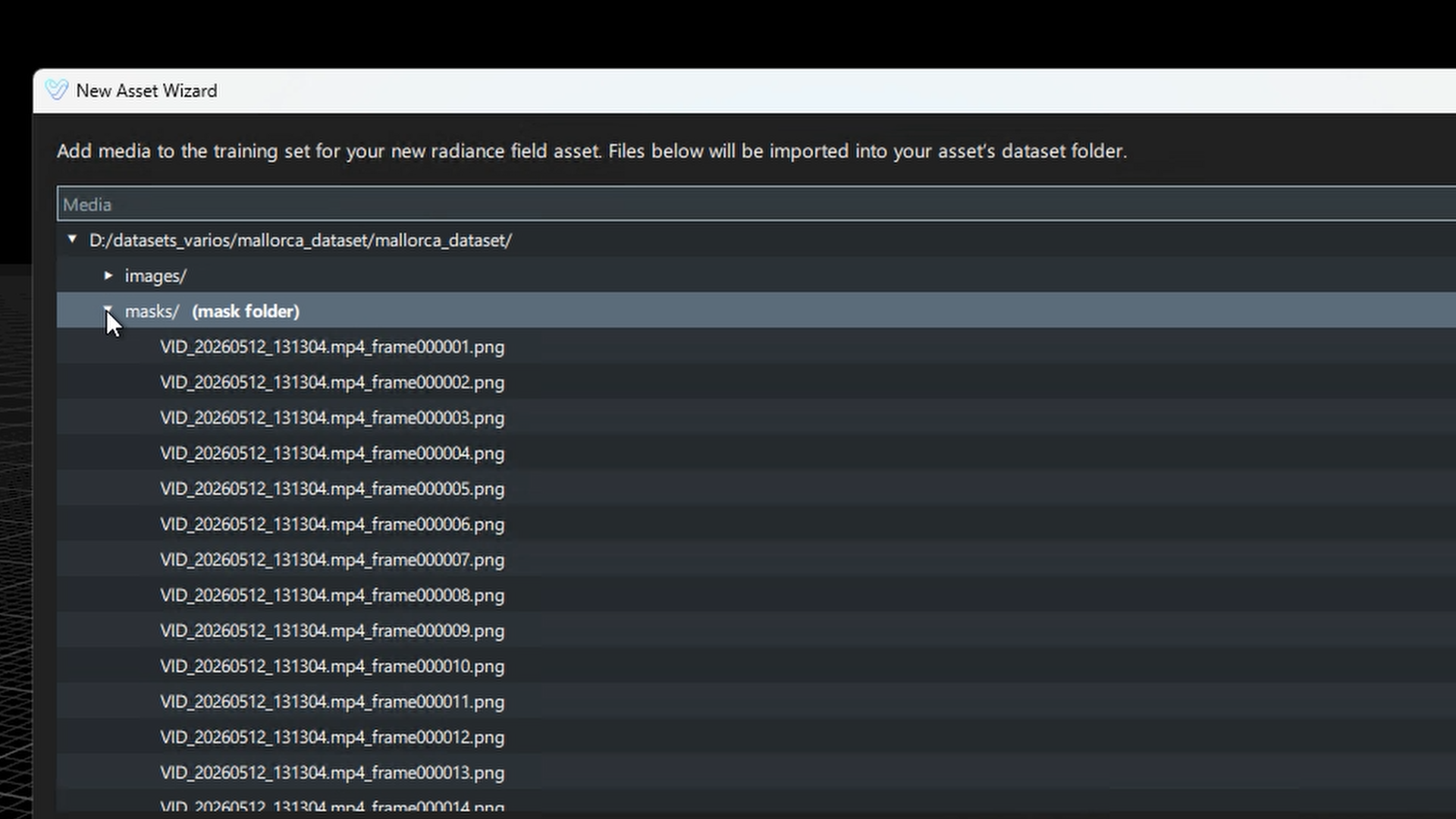
Once added, the folder is automatically labeled (mask folder), confirming it was detected correctly.
For more information about the required folder structure and masks naming conventions, visit masks.
3. Train with Masks
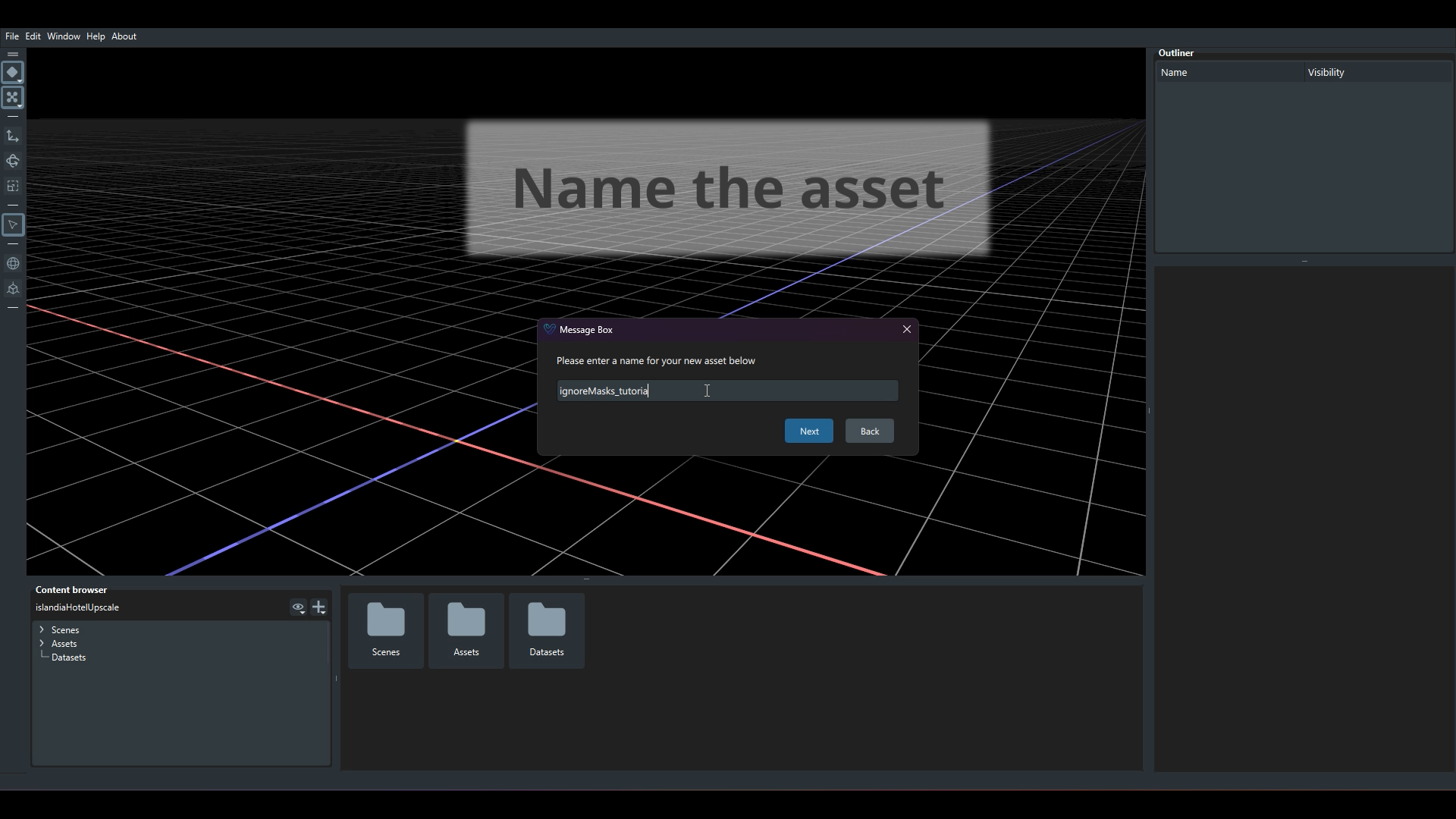
- Enter a name for the new asset and click Next.
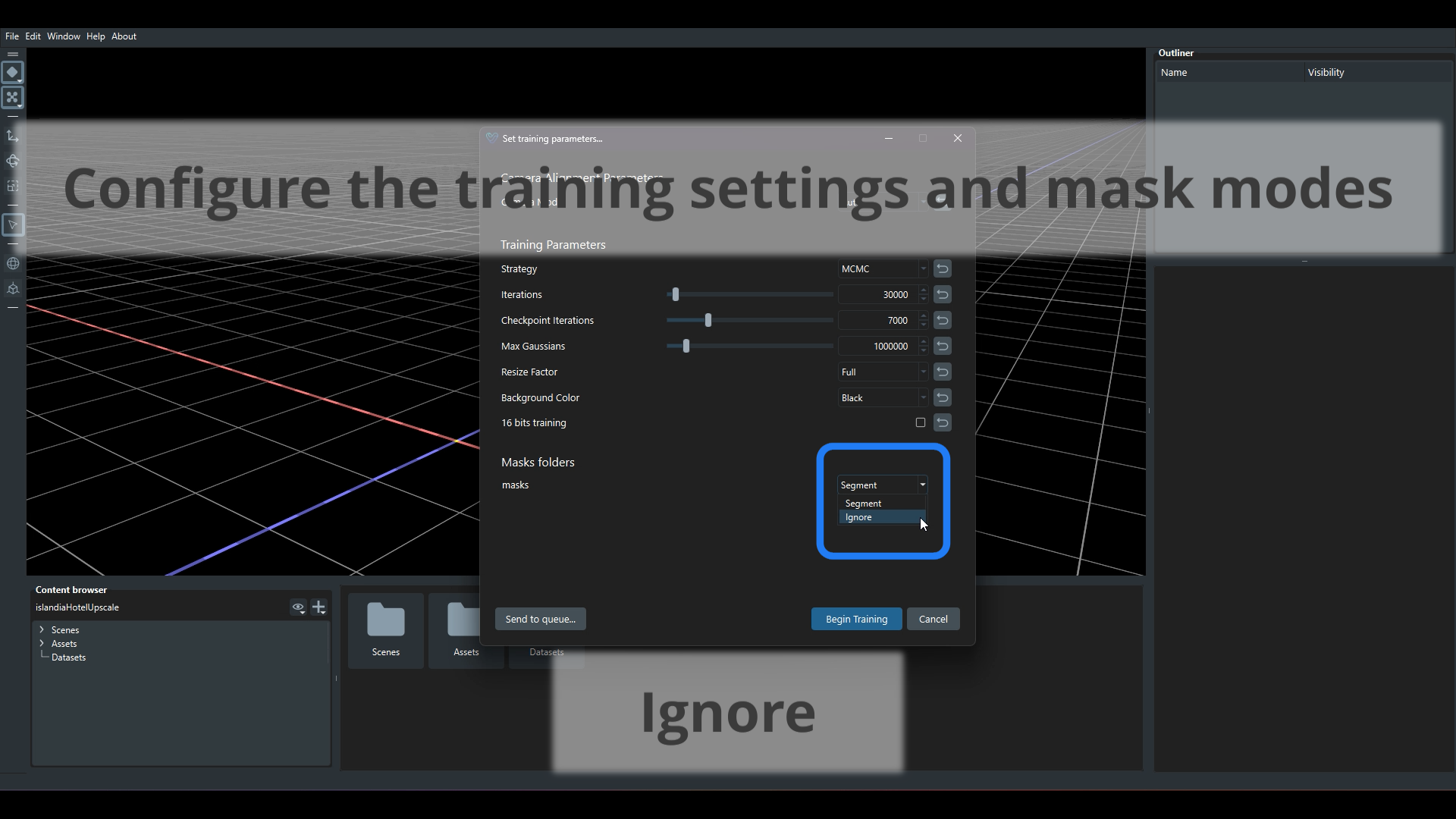
- Configure the training settings and mask modes.
Under Masks folders, select Ignore as the mode for the detected mask folder.
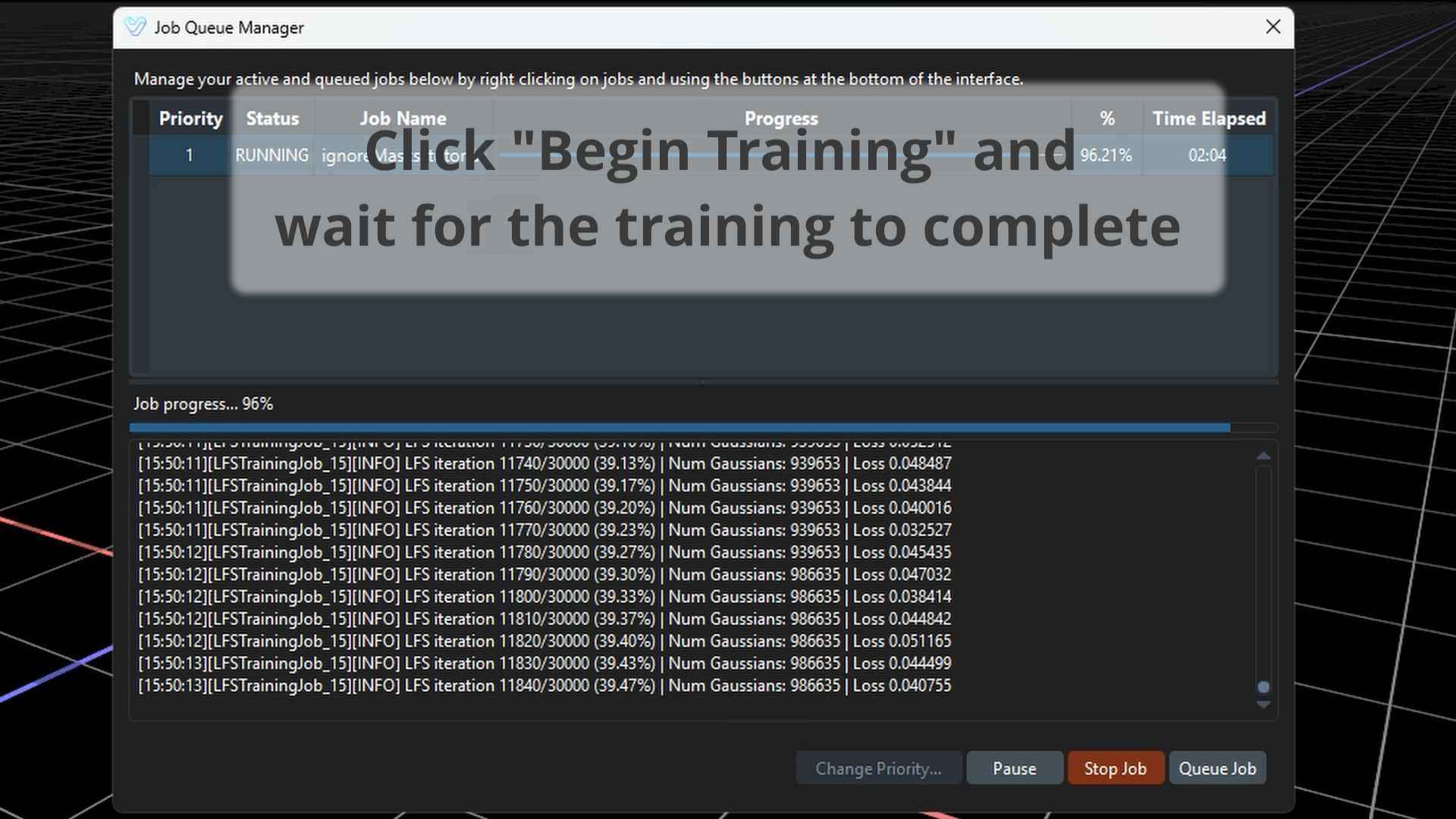
- Click Begin Training and wait for the training to complete.
4. View the 3DGS Model
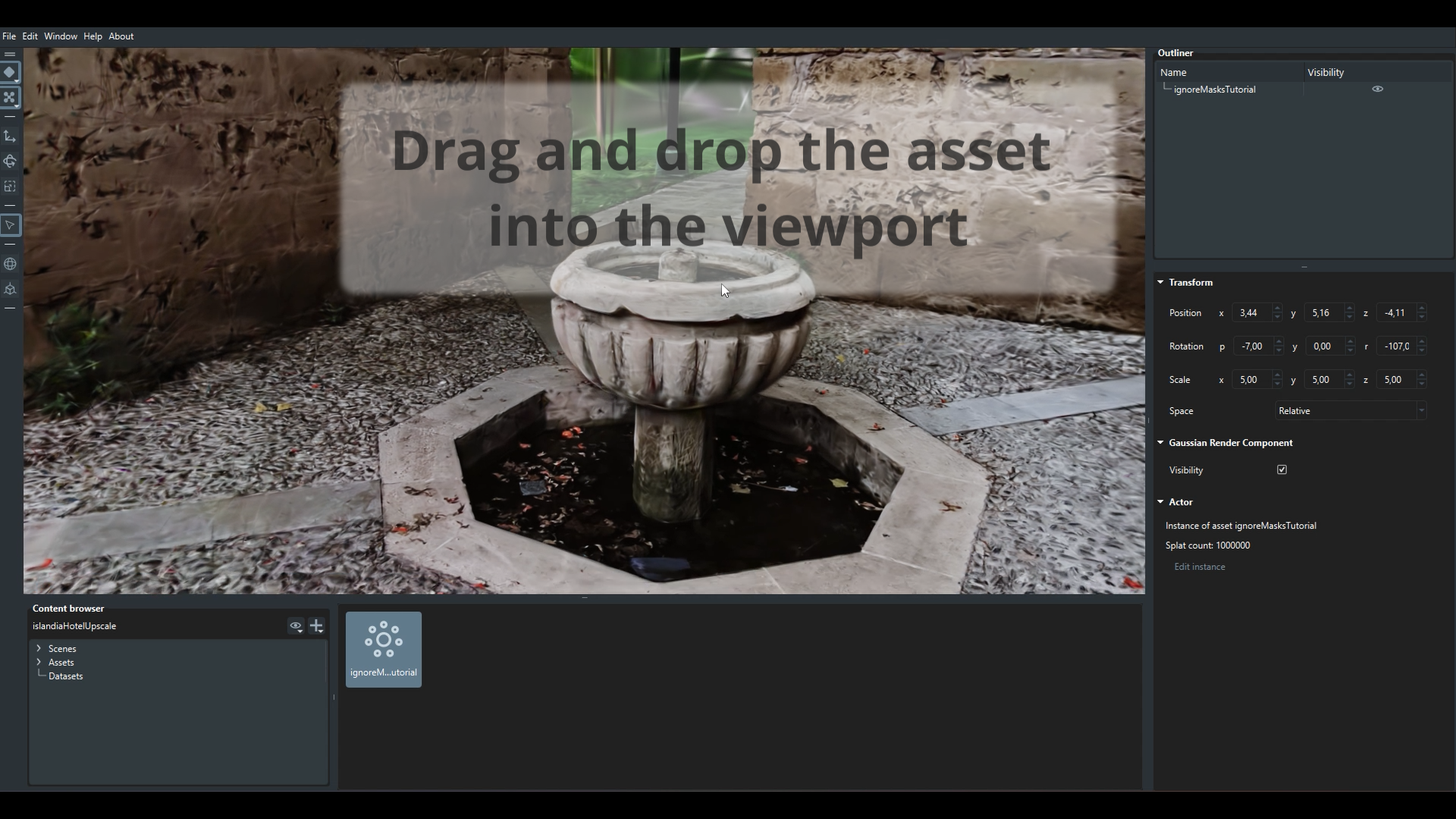
- Drag and drop the 3DGS asset from the Content Browser into the viewport.
The resulting gaussian model was trained while ignoring the masked regions (people).