The Media Import workflow is the entry point for creating training datasets in Volinga Suite. Users can import images, videos, COLMAP reconstructions, camera rig captures, and PLY data.
Imported content is automatically analyzed to determine the appropriate dataset structure and training pipeline, including all required preprocessing steps and validation rules. The system dynamically configures the available training options based on the imported data type.
¶ Creating a New Asset
To start the Media Import workflow, a new asset must be created. 3DGS Assets are produced by a training process based on a dataset generated from the imported files. A new asset can be created in two different ways:
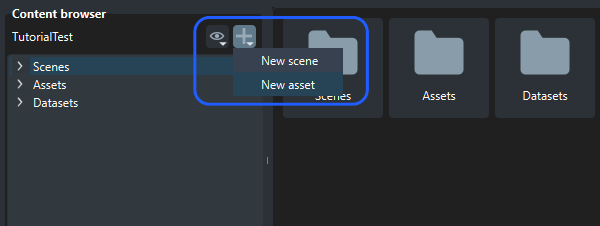
- Option 1 — Content Browser: click the Add (+) icon and select New Asset in the content browser.
- Option 2 — Toolbar Shortcut: go to File → New Asset in the top toolbar.
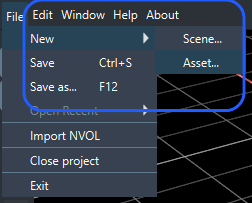
Creating a new asset opens the New Asset Wizard.
¶ New Asset Wizard
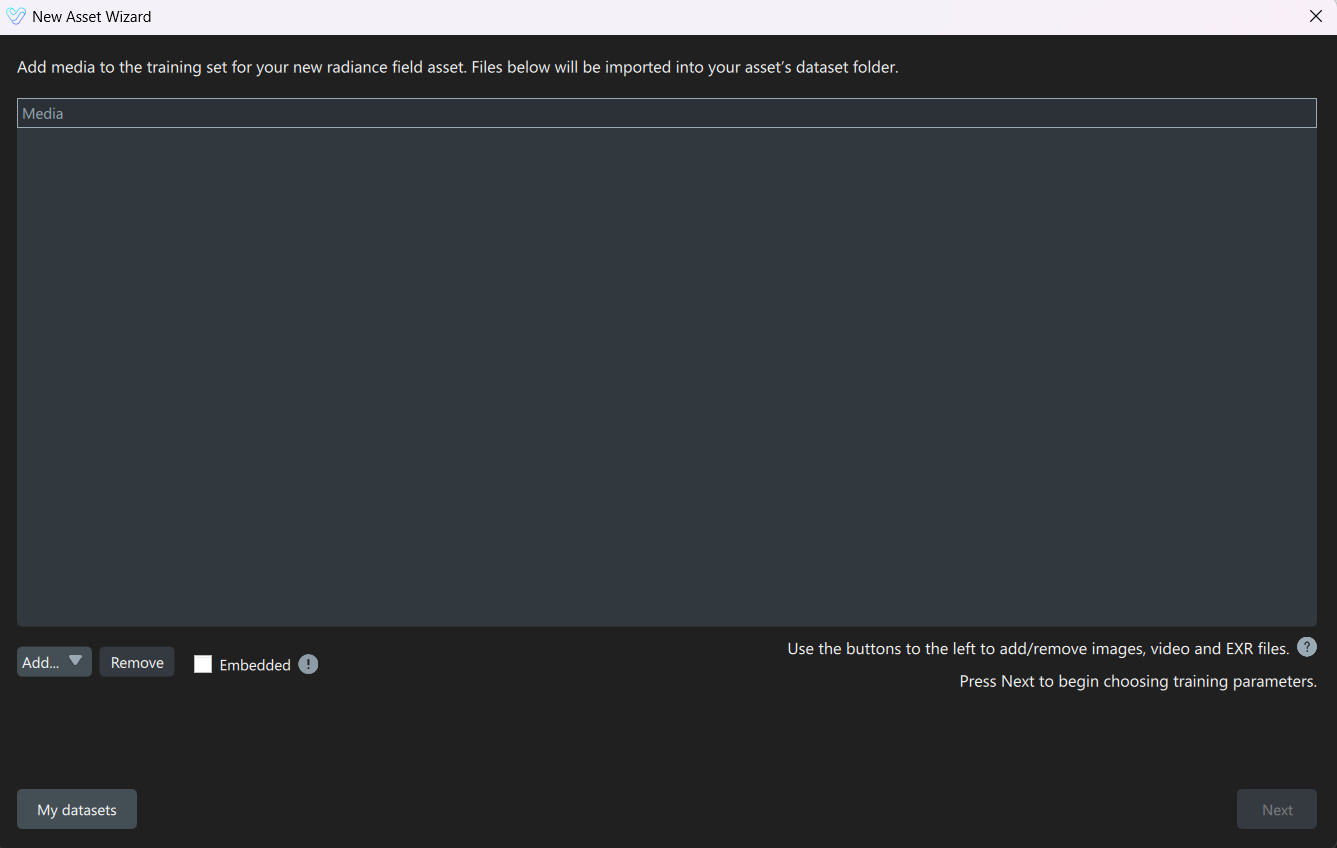
The New Asset Wizard is the Media Importer window in Volinga Suite. It is used to create new assets by importing supported media files or by selecting existing datasets.
¶ Creating a New Dataset
The Media Importer is used to generate a new dataset associated with the asset. When importing media, the system creates a dataset with the same name as the asset.
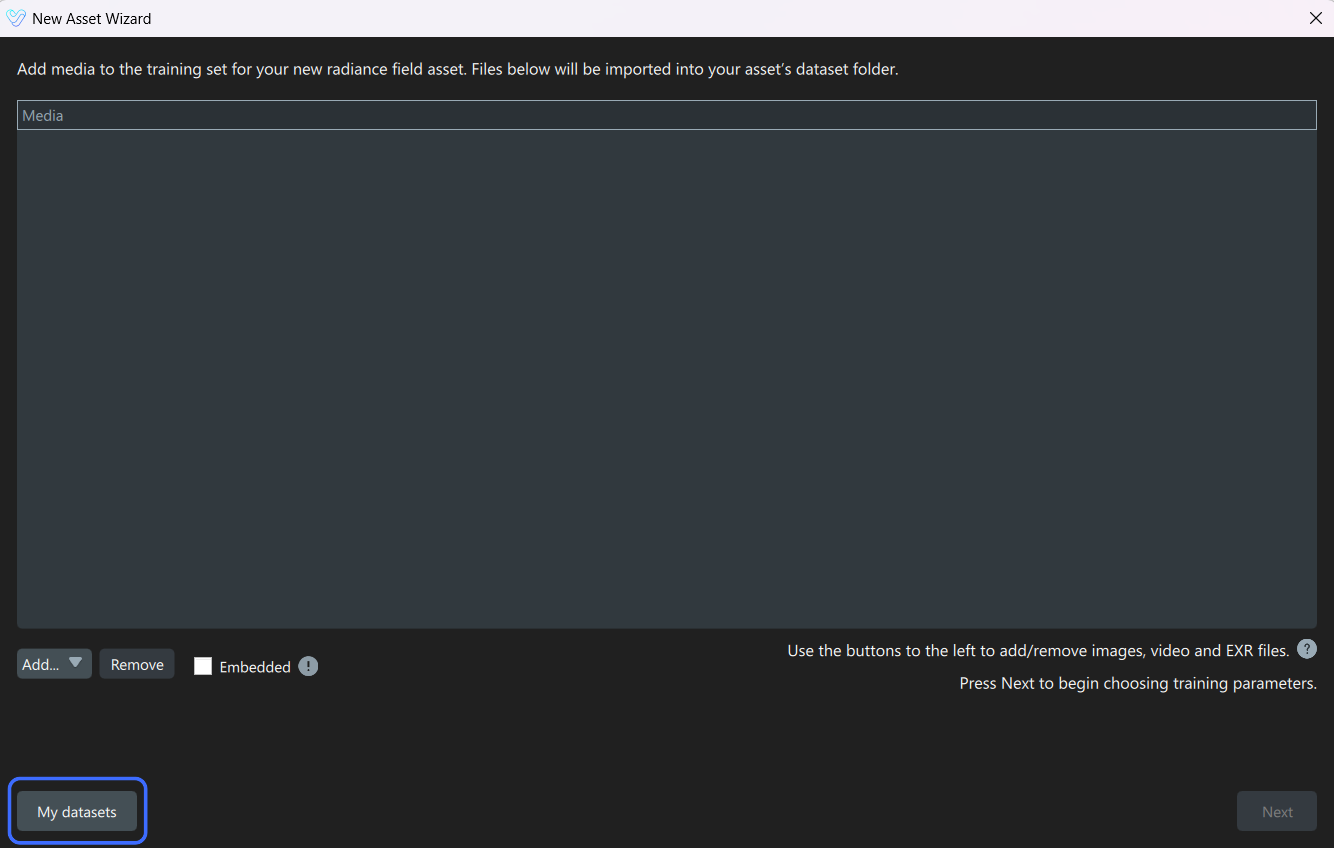
Alternatively, users can train from an existing dataset using the My Datasets option. In this case, no media import is required.
¶ Import Files
¶ Supported Input Files
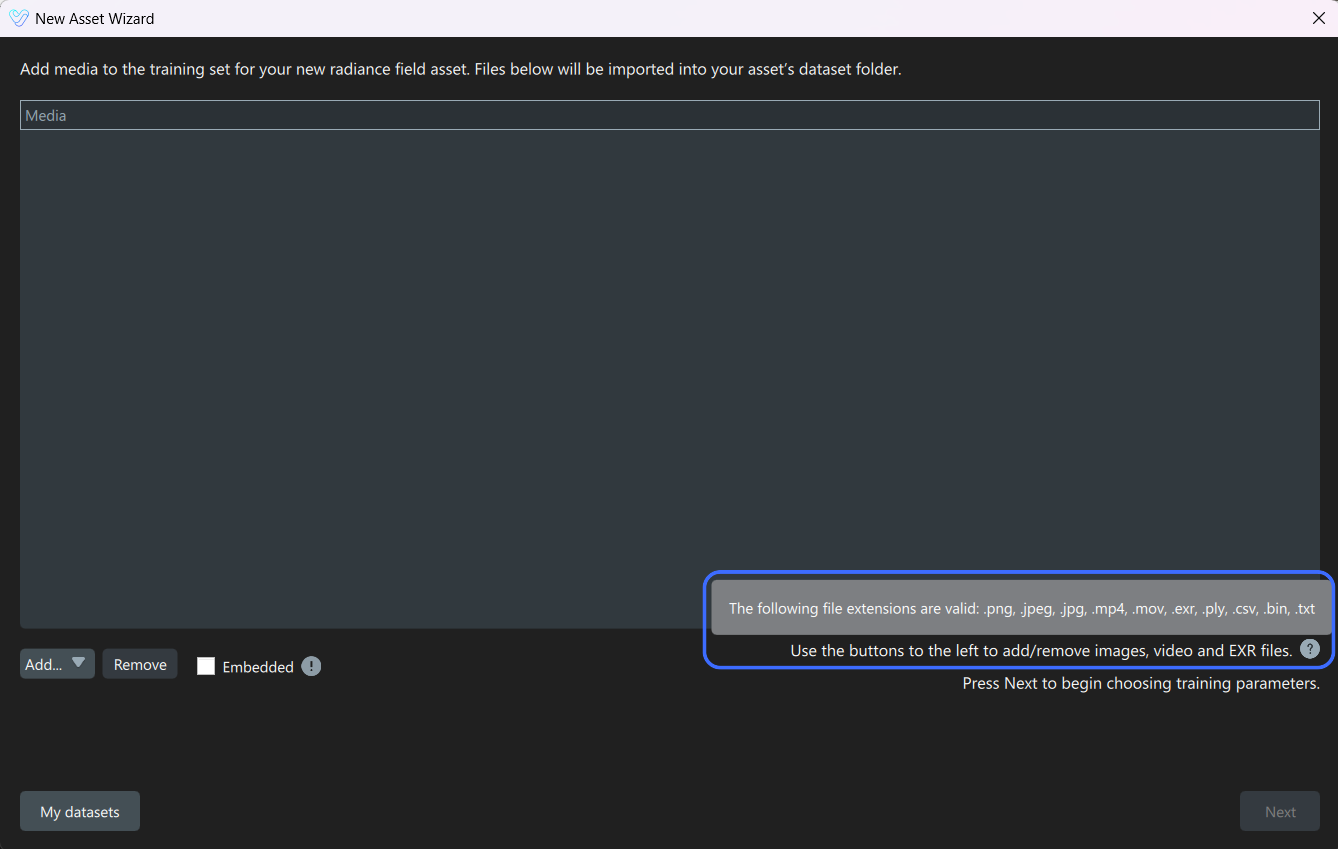
The Media Importer supports the following file extensions:
- Images: .png, .jpg/jpeg and .exr (Read more about EXR format).
- Video: .mov and .mp4.
- Other inputs: .ply, COLMAP reconstruction (.bin, .txt) and camera rigs dataset.
¶ File Detection Behavior
In general, the Media Import workflow does not inspect file contents. Files are primarily identified using their extension. For example, an .mp4 file is treated as valid video input without validating its internal structure during import.
If a file is incorrectly formatted, the error will only appear during training, not during import.
¶ Image Flattening Behavior
During dataset creation, all imported images are consolidated into a single dataset directory, regardless of their original folder structure.
-
For example:
images/
- ├── img1.png
├── img2.png
└── a/- ├── img3.png
└── img4.png
- ├── img3.png
- ├── img1.png
-
Becomes:
dataset/images/
- ├── img1.png
├── img2.png
├── img3.png
└── img4.png
- ├── img1.png
This approach ensures compatibility with training stages that do not support nested folder structures.
¶ Import validation Rules
- Images and video cannot be mixed in the same dataset.
- Only one video can be included per dataset.
¶ Add Files
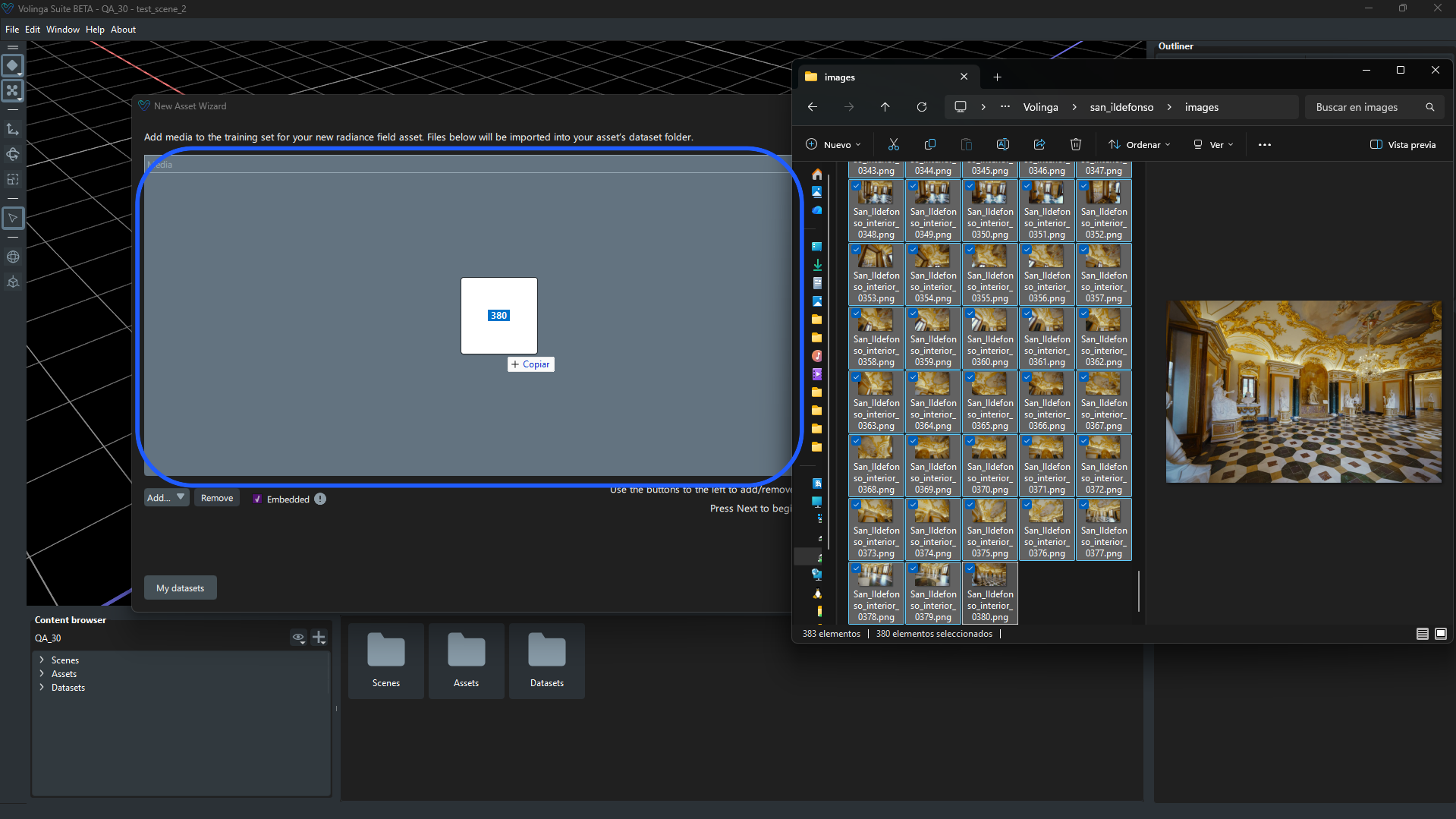
Files can be added to the Media area in the New Asset Wizard by dragging and dropping them directly into the import panel, or by using the Add button located at the bottom of the panel.
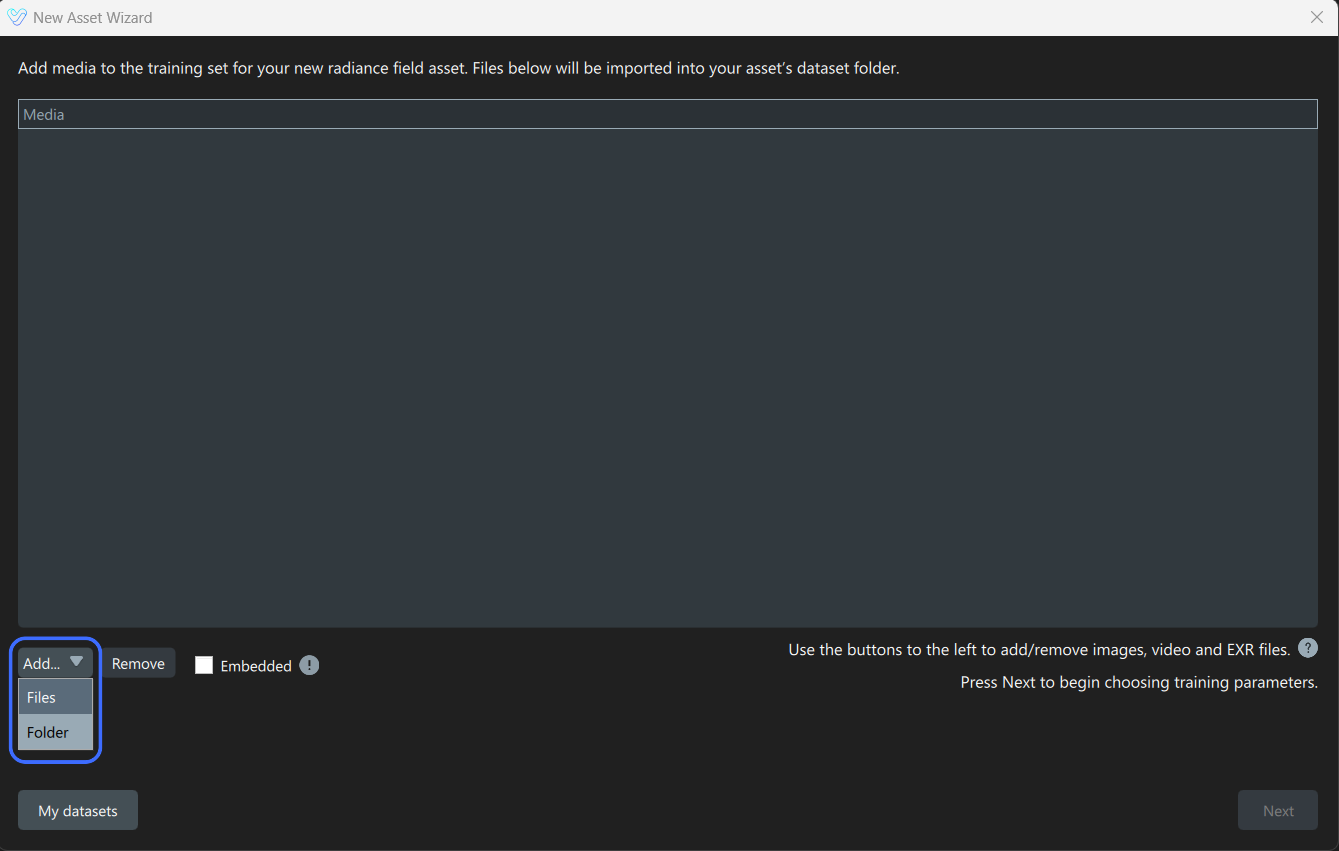
Clicking Add opens two options:
- Files: opens the content browser to select individual files.
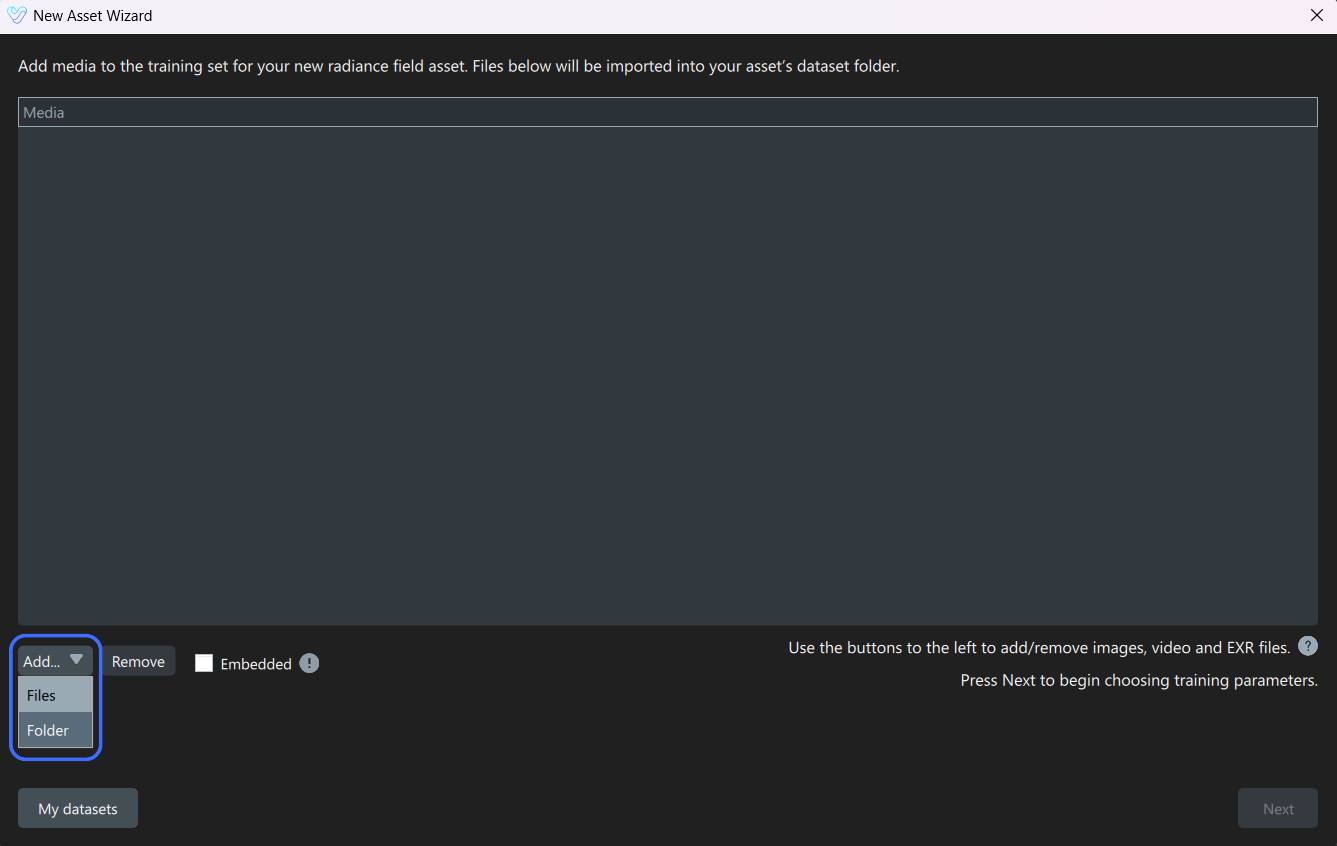
- Folder: opens the content browser to select a directory containing media files.
¶ Remove Files
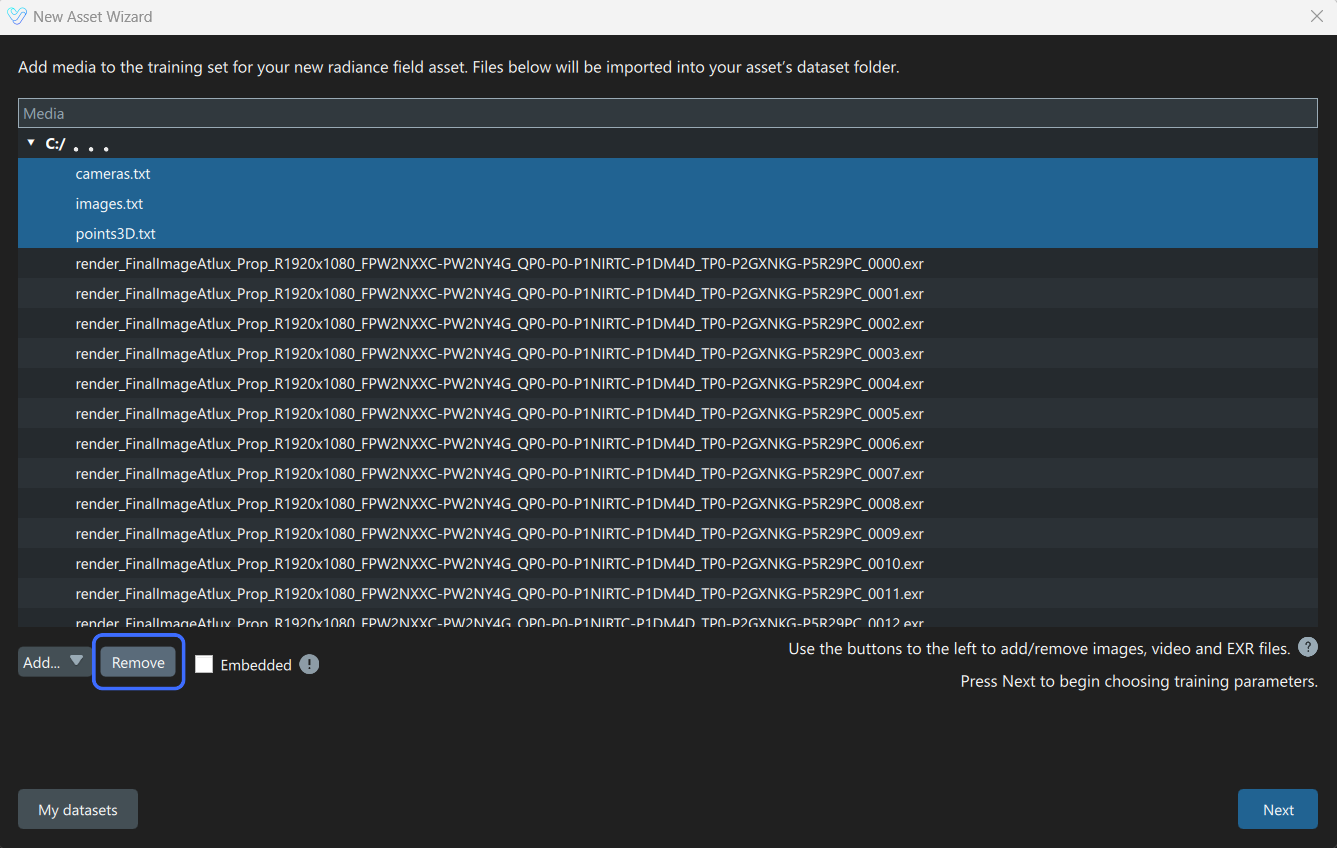
Items added to the Media list in the New Asset Wizard can be removed before dataset creation.
- Ctrl or Shift + Click: to select or deselect individual or multiple items.
- Click the Remove button located at the bottom of the panel.
¶ Embedded Option
If the Embedded option is enabled in the New Asset Wizard, the selected media files will be imported directly into the current project.
- When enabled: the selected media files are copied and stored inside the project directory.
- When disabled: the project references the original file locations without copying the media into the project.
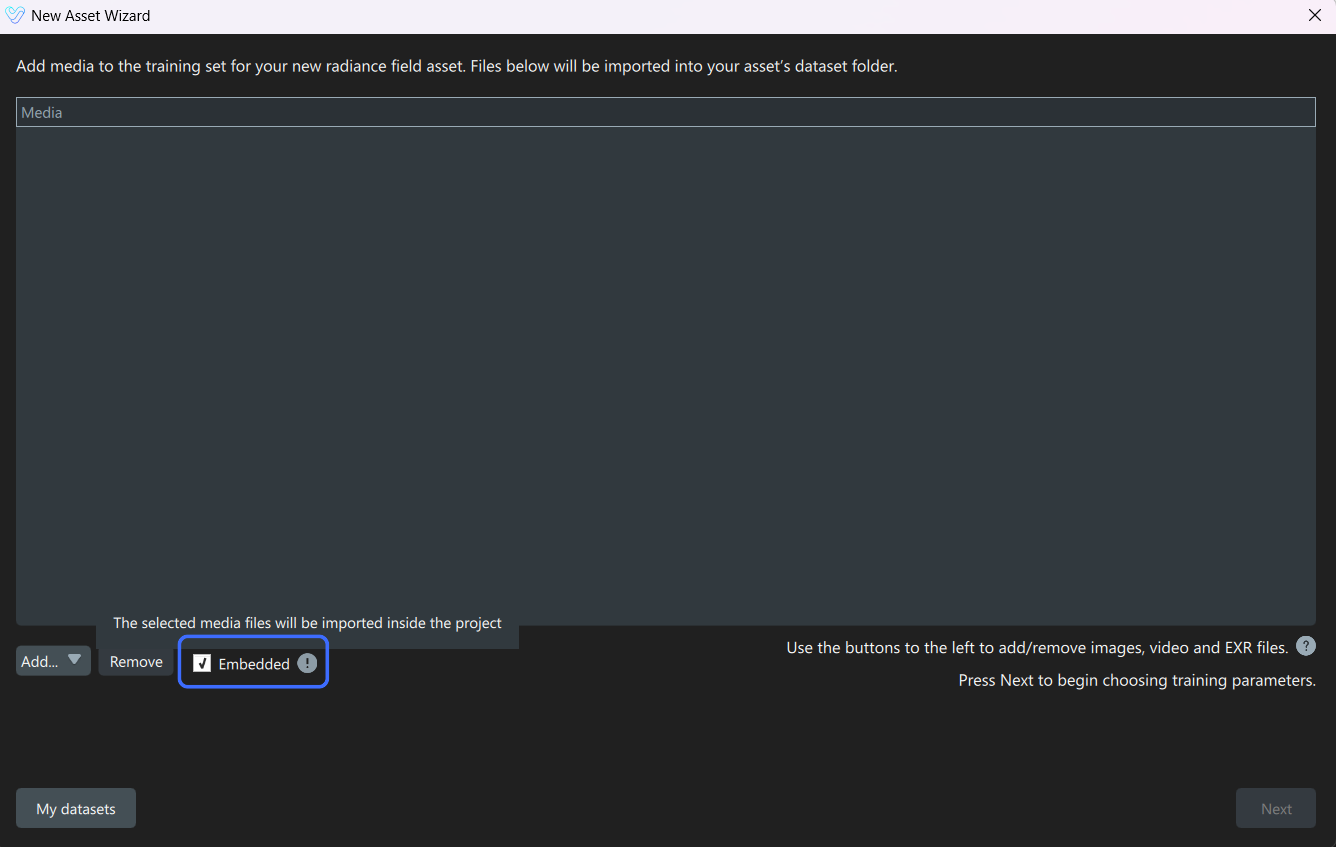
Regardless of this setting, all intermediate training outputs are always written inside the project directory.
¶ COLMAP Import
COLMAP reconstructions are supported as a structured input type.
These files provide the required camera registration and sparse reconstruction data for Volinga Suite to import and interpret a COLMAP model and to properly initialize your 3D scene:
- Sparse:
- Images File (*.bin or *.txt): The images.bin or images.txt file generated during COLMAP camera alignment that contains camera extrinsic pose information.
- Cameras File (*.bin or *.txt): The cameras.bin or cameras.txt file from COLMAP camera alignment that defines intrinsic camera parameters.
- Points3D File (*.bin or *.txt): The points3d.bin or points3d.txt file containing the sparse point cloud generated during COLMAP camera alignment.
- Source images.
By importing COLMAP models, you can also leverage camera alignments coming from other tools supporting COLMAP exports like RealityScan or Metashape.
The system can automatically detect COLMAP datasets by analyzing reconstruction files and matching them with the imported image folders. For Volinga Suite to recognize an import as a valid COLMAP reconstruction, all required COLMAP files and source images must be present. When this condition is met, the import is registered as a COLMAP reconstruction, and the folder containing the images is labeled as:
- (colmap images root)
A manual COLMAP configuration is available for cases where the automatic detection does not work, typically when the folder structure is non-standard. If it is not labeled automatically, it can be manually assigned by right-clicking the folder and selecting the Set as COLMAP images folder option.
¶ CSV + PLY Import
CSV reconstruction + PLY data can be imported into Volinga Suite. This workflow is commonly used with reconstruction data exported from programs such as RealityScan. The import requires:
- A CSV file containing camera position and rotation data associated with the source images.
- A PLY file containing the reconstructed point cloud.
- Source images.
Once imported, the reconstruction is used as input for the training workflow.
¶ Camera Rig Import
Camera rig datasets are supported in the New Asset Wizard for multi-camera synchronized captures. The imported dataset must follow the following structure to ensure temporal and structural consistency across all cameras:
- Each subfolder under the camera rig root represents a separate camera.
- All camera folders must contain an identical number of images.
Volinga Suite attempts to detect camera rig datasets automatically based on the imported folder structure. If the dataset is not recognized automatically, the camera rig root can be defined manually by right-clicking the corresponding folder and selecting Set as Camera Rig Root Folder.
¶ 3DGS Import
The Media Importer supports importing PLY, SOG, and SPZ Gaussian Splat files.
Imported files are automatically converted into the native NVOL format, allowing them to be edited, organized into scenes, and used throughout the standard Volinga Suite workflow. Since these files already contain trained Gaussian Splat data, the training stage is skipped during the import process.
¶ Supported Gaussian Splat Formats
| Format | Supported Since |
|---|---|
| PLY | v0.3.0 |
| SOG | v0.4.0 |
| SPZ | v0.4.0 |