¶ Masks
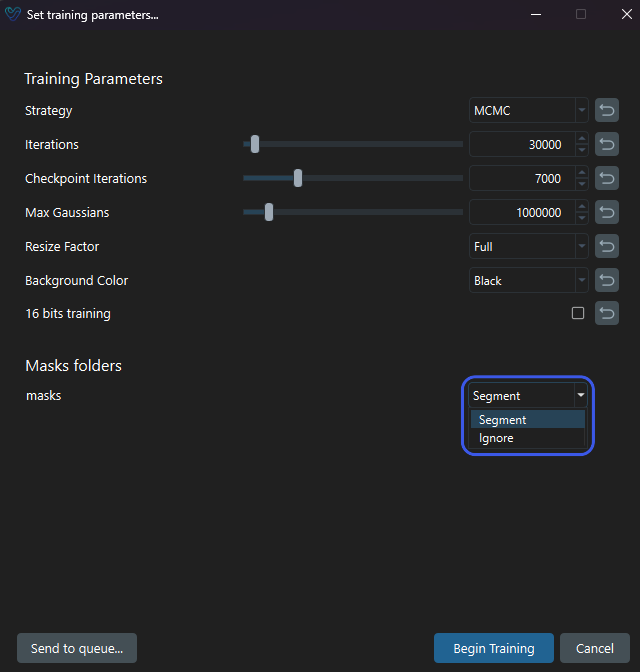
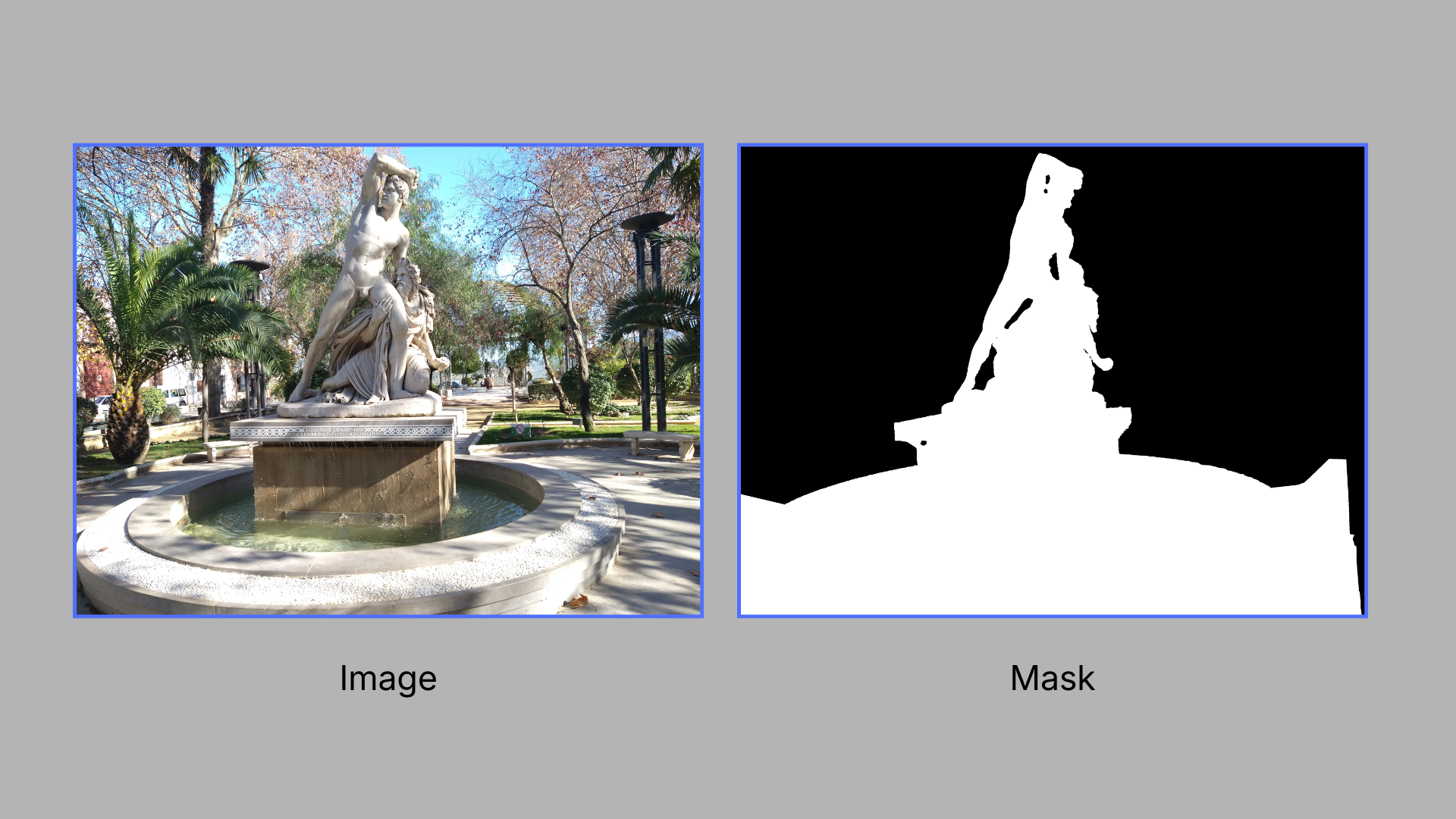
Masks are black-and-white matte images associated with the source images in a dataset, used to control how different regions of each image contribute to the training process. Volinga Suite supports two mask modes, Segment and Ignore, applied on a per-folder basis. Each mask folder can be configured independently, and multiple folders with different modes can be combined within the same training job.
¶ Use Cases
Masks can be used to refine reconstruction results or focus the training on specific regions of a scene. Common use cases include:
- Isolating a subject or object to create an object-centric reconstruction.
- Removing the background, such as the sky or other irrelevant areas, so that only the region of interest contributes to the training.
- Excluding transient objects such as people, vehicles, animals, or other moving elements captured during image acquisition.
- Removing distracting elements that should not appear in the final reconstruction, even if they are static.
- Combining multiple mask modes within the same dataset. For example, segmenting a foreground object while simultaneously ignoring pedestrians or vehicles in the background.
¶ Project Folder Structure
A dataset prepared for mask-based training includes:
-
📁 dataset
- 📁 images
- 📁 sparse (optional)
- 📁 masks_ignorePeople (.png, .jpg, .jpeg)
- 📁 masks_segmentSky (.png, .jpg, .jpeg)
-
Images: the source images (required).
-
Sparse: COLMAP camera registration and sparse point cloud data (optional).
-
Mask folder(s): one or more folders containing mask images, following the naming convention below. Mask folders are not required to be direct children of the dataset root, they can be located at any level of the project's directory structure.
¶ Naming Conventions
¶ Folder Naming
For a folder to be recognized as a mask folder, its name must start with the prefix mask or masks. The prefix check is not case-sensitive, and it may be followed by any additional characters.
Valid examples:
- 📁 masks
- 📁 masks_people
- 📁 Masks_Car
- 📁 mask_v2
A mask folder does not need to be nested inside the main dataset directory to be detected.
¶ File Naming
Each mask image must have the same filename and extension as its corresponding source image. For example, a source image named DSC0001.jpg must have a corresponding mask named DSC0001.jpg inside the mask folder.
The total number of source images and mask images must be identical. Each mask image must have the same filename (case-insensitive) and file format as its corresponding source image.
¶ Automatic Detection vs Manual Assignment on Import
¶ Automatic Detection
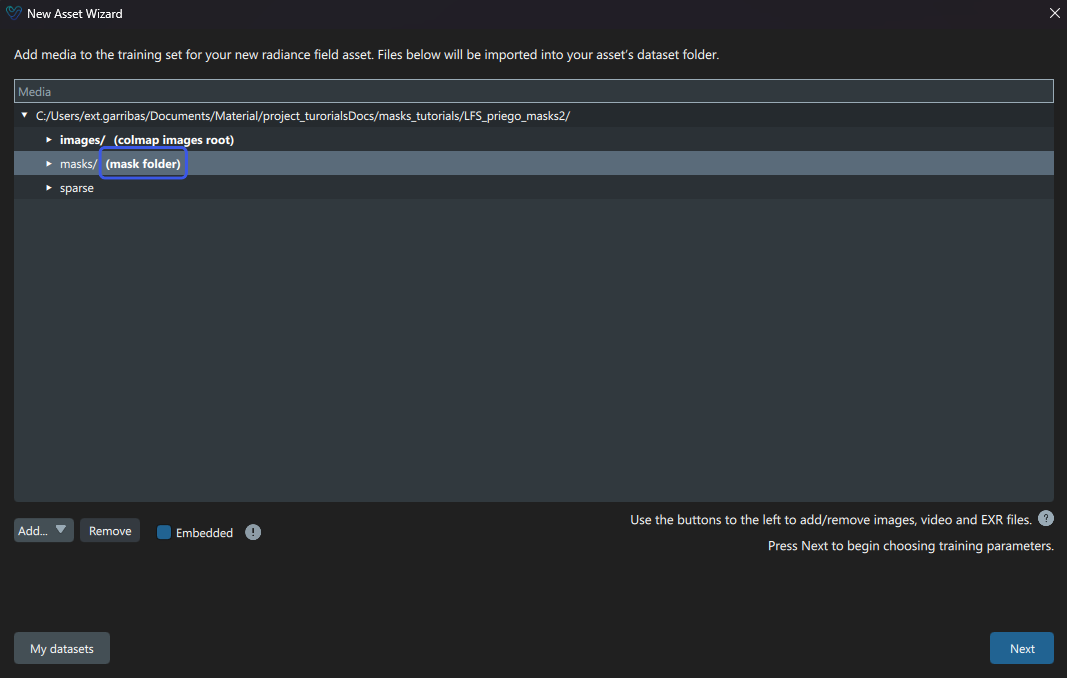
When a dataset is imported, any folder that follows the naming convention above is automatically detected as a mask folder. Detected folders are labeled in the file browser with (mask folder) next to their name.
¶ Manual Assignment
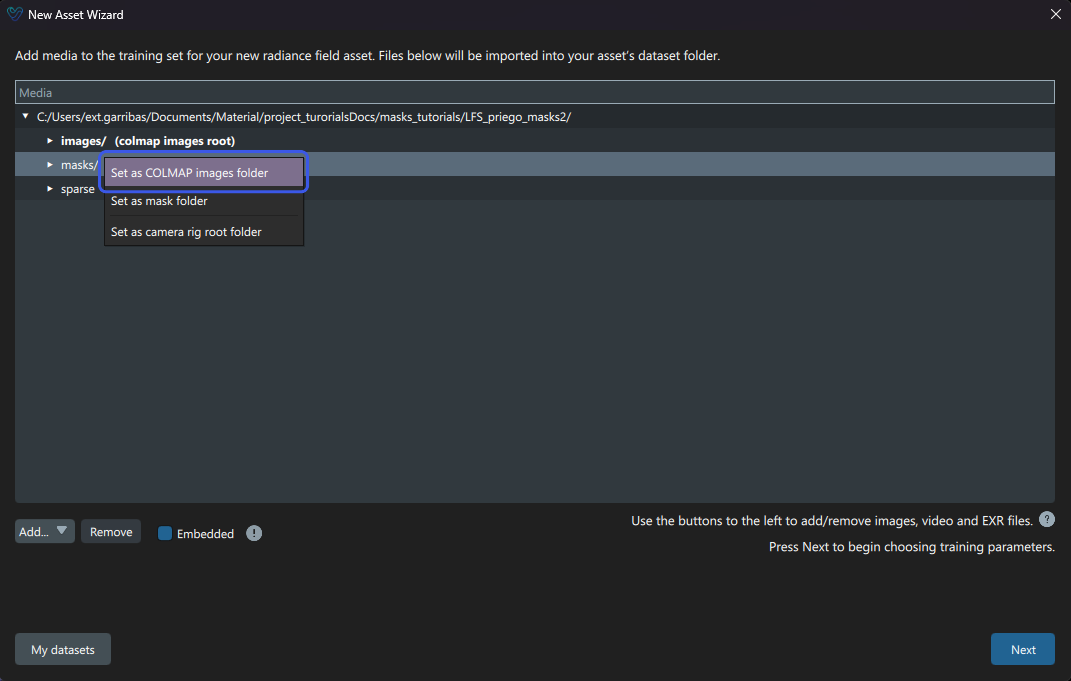
If a mask folder is not detected automatically, it can be assigned manually by right-clicking the folder in the file browser and selecting Set as Mask Folder. Once assigned, the folder is treated the same as an automatically detected mask folder.
¶ Assigning a Mask Mode
Once a mask folder has been detected, its mode is assigned in the training configuration panel. Each detected mask folder appears as its own entry in a vertical list, where one of two modes can be selected:
- Segment: crops the training data to isolate the masked region.
- Ignore: excludes the masked elements from training without cropping the image.