Volinga Suite provides a dedicated Asset Editing mode that allows you to directly modify Gaussian data within an NVOL asset.
This mode enables fine control over selection, transformation, and structural editing of the Gaussian representation.
Asset Editing is currently supported only for static 3D Gaussian Splats (3DGS).
Editing operations are not available for animated 4D Gaussian Splats (4DGS).
¶ Accessing Asset Editing Mode
There are two ways to enter Asset Editing mode:
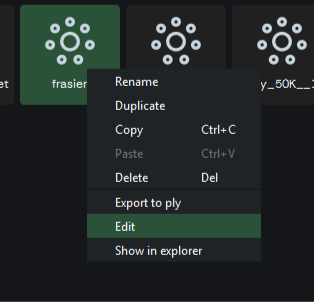
¶ From the Content Browser (Asset Level)
- Navigate to the Content Browser
- Locate your asset: Assets → Your Asset
- Right-click on the asset
- Select Edit
This will open the asset directly in Asset Editing mode.
¶ From a Scene Instance (Actor Level)
- Select an actor in the scene:
- From the Scene Outliner, or
- By clicking the actor in the viewport
- In the Properties Panel, click: Edit Instance
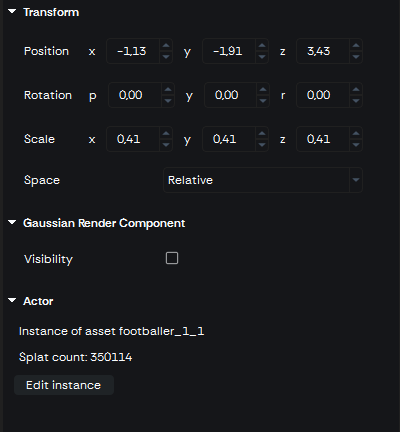
The scene must be saved before editing an instance.
This will open the corresponding asset in Asset Editing mode.
¶ Interface Overview
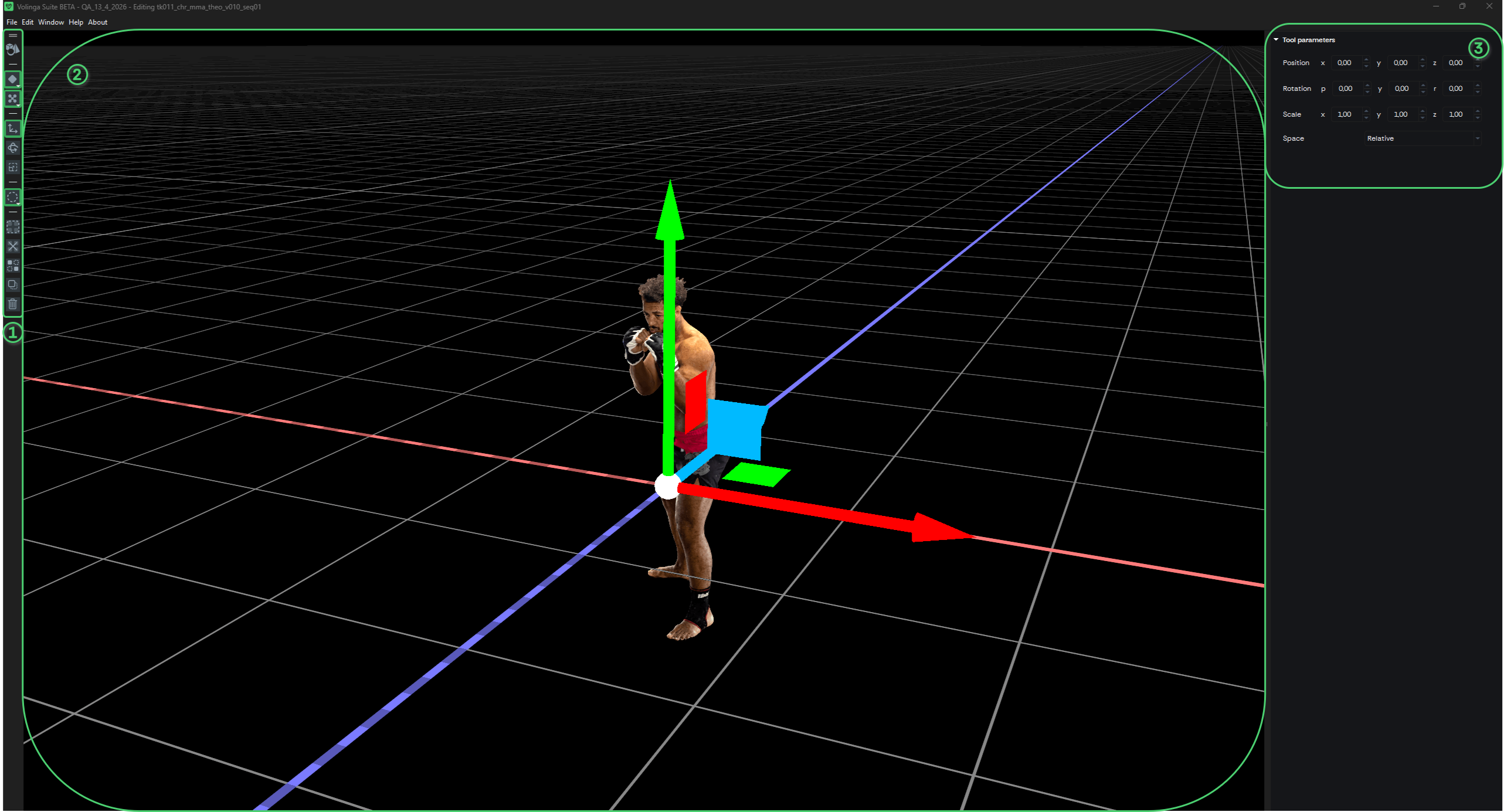
The Asset Editing interface is organized into three main areas:
-
1) Tools Panel
Provides access to tools used to edit the Gaussian data, including: Selection tools, deletion and duplication, transform operations (move, rotate, scale). -
2) Viewport
Displays the Gaussian representation of the asset and allows direct interaction and editing. -
3) Tool Properties Panel
Displays the parameters and settings of the currently selected tool.
¶ Tools
The Tools Panel contains the main operations available for editing Gaussian data within an asset.
Each tool provides a different way to visualize, select, and modify the underlying splats.

¶ General Controls
 Return to Scene: Exits Asset Editing mode and returns to the scene.
A confirmation dialog will appear prompting you to save any pending changes.
Splat Mode: Controls how Gaussians are visualized in the viewport.
- Available modes:

Splat Mode

Rings Mode

Centroids Mode

Rings + Centroids Mode
Camera Mode:
- Available modes:

Orbit Mode

Fly Mode
¶ Transform Tools
Allow spatial manipulation of selected Gaussians:

Move (Translation)

Rotate

Scale
Transformations can be applied using:
- The viewport gizmo
- Numerical values in the Tool Properties Panel
¶ Selection Tools
Used to define which Gaussians will be affected by editing operations:
 Circle Selection: Selects Gaussians within a circular brush area
- Parameters:
- Radius
- Depth
 Lasso Selection:Allows freeform selection by drawing a custom shape
- Parameters:
- Depth
 Cube Selection
- Parameters:
- Transform: Position,Rotation,Scale
- Space: Relative/ Absolute
- Operations: Set, Add, Remove
 Sphere Selection
- Parameters:
- Transform: Position,Rotation,Scale
- Space: Relative/ Absolute
- Operations: Set, Add, Remove
 Single Gaussian Selection: Allows precise selection of individual Gaussians
¶ Selection Operations
Define how selections are applied:
-
Set
- Replaces the current selection.
-
Add
- Adds to the existing selection.
-
Remove
- Removes elements from the current selection.
¶ Editing Operations
Once a selection is defined, the following operations can be applied:
 Select All: Selects all Gaussians in the current asset or scene context.
 Unselect All: Clears the current selection, leaving no Gaussians selected.
 Invert Selection: Reverses the current selection state, selecting unselected Gaussians and deselecting selected ones.
 Duplicate: Creates a copy of the selected Gaussians, preserving their attributes and transforms.
 Delete: Permanently removes the selected Gaussians from the asset.
¶ Undo / Redo (Editing History)
Asset Editing mode supports standard undo and redo operations to allow non-destructive workflow during editing.
-
Undo (Ctrl + Z)
Reverts the last modification performed on the asset, including selection changes, transformations, and edit operations. -
Redo (Ctrl + Y)
Reapplies the last undone operation, restoring the previous editing state.
These shortcuts are only available in Asset Editing mode and apply exclusively to changes made within the current editing session.
¶ Shortcuts
For a complete list of keyboard shortcuts associated with these tools, refer to: Keyboard-shortcuts Guide
¶ Working with NVOL Files After Editing an Instance
When using Edit Instance, the modifications you make affect the underlying NVOL asset used by that instance.
If you plan to reuse or export the edited NVOL for Unreal Engine workflows with Volinga Plugin, there are several ways to manage it depending on your pipeline needs.
¶ Recommended Workflow — Duplicate before editing
The recommended and safest workflow is to avoid editing shared assets directly and instead work on duplicated versions.
- Go to the Content Browser
- Right-click the NVOL asset
- Select Duplicate
- Right-click in the the duplicated asset
- Use Edit
This ensures that:
- The original asset remains untouched
- You can iterate safely without breaking existing scenes or instances
- The edited asset remains easily accessible within the project and the Content Browser
This is the recommended workflow for production pipelines, as it keeps assets organized and reusable directly inside Volinga Suite.
¶ Option 1 — Locate the updated NVOL via Properties Panel
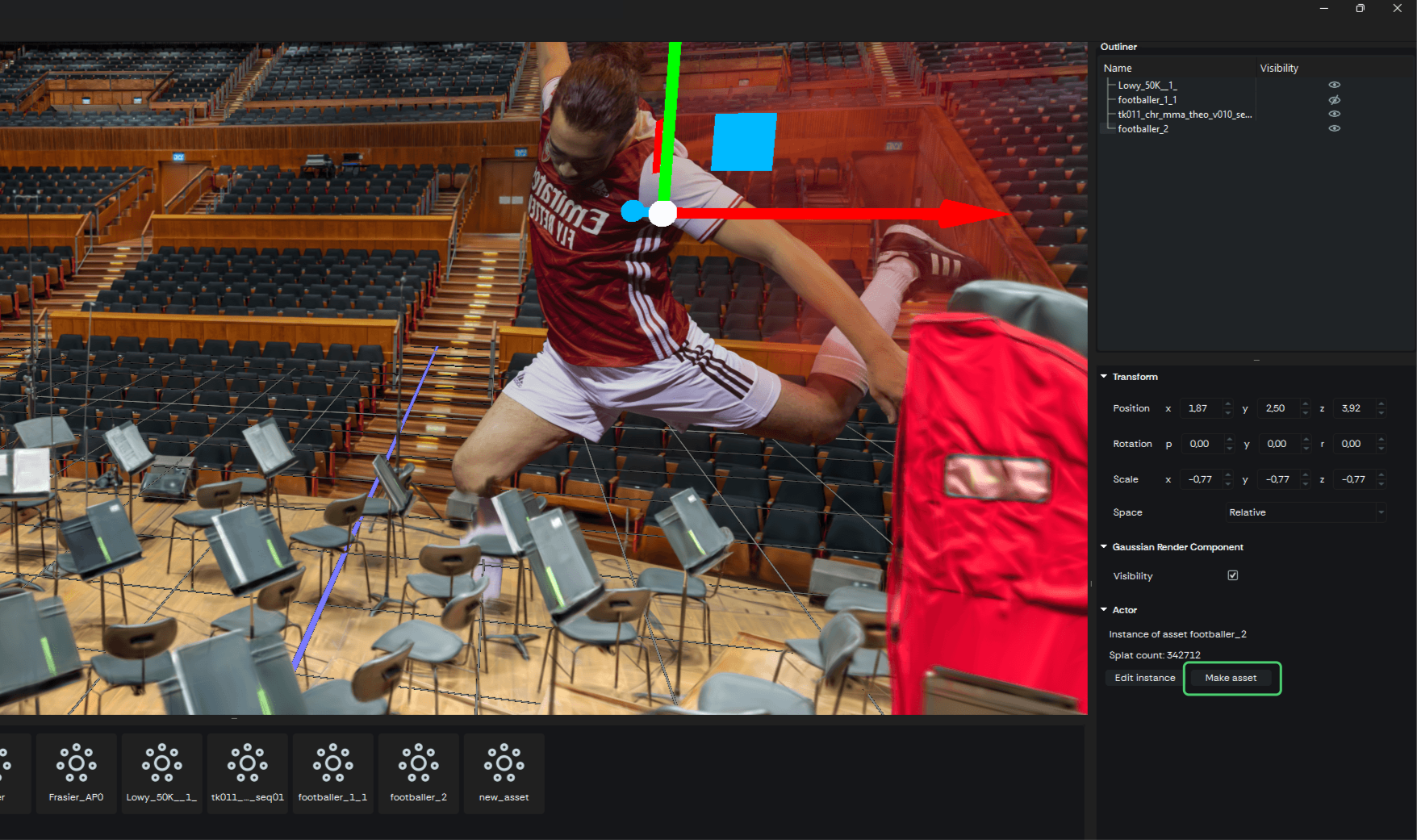
After editing an instance (Edit Instance Button):
- Select the edited actor in the scene
- Go to the Properties Panel
- Click Show in Explorer
This will open the folder where the generated NVOL file is stored.
From there, you can:
- Identify the updated NVOL file
- Rename it if needed
- Move it to another folder for reuse or export
¶ Alternative — Export as NVOL Collection
You can also use: File → Export NVOL Collection
This will export the entire scene structure while preserving actor transformations into a set of NVOL files.
- Useful for exporting multiple NVOLs at once
- Recommended when transferring full scenes to external tools such as Unreal Engine
This method is intended for scene-level export rather than individual asset iteration.