¶ Performance Optimization
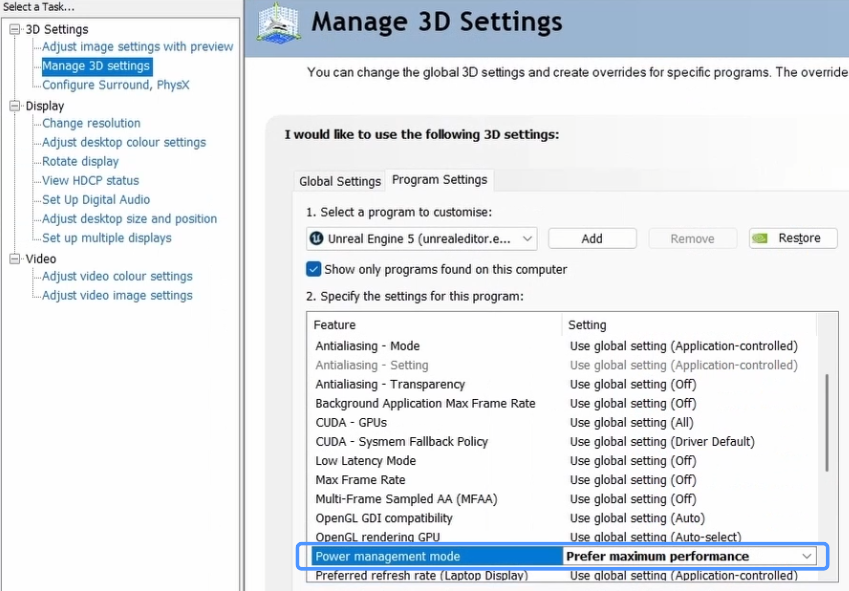
- System-level optimization can be applied through the NVIDIA Control Panel. Set Power Management Mode to Prefer Maximum Performance in NVIDIA Control Panel → Manage 3D settings → Program Settings.
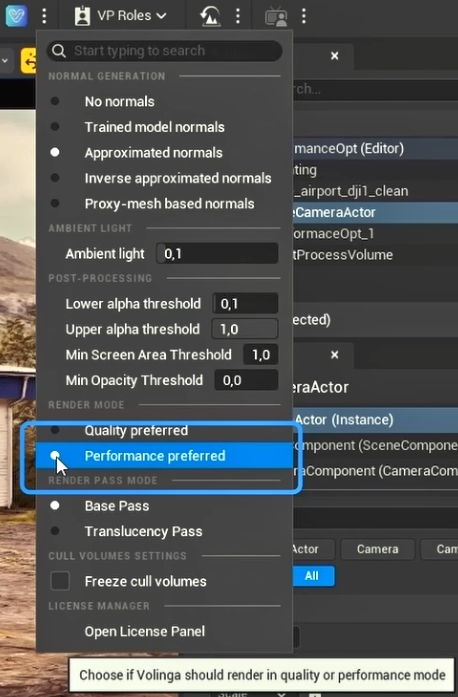
- For better efficiency, consider using the new Performance preferred render mode in the Volinga plugin. Please note that this setting compromises visual quality.
By default, Unreal Engine runs with resource-demanding features enabled to ensure proper visual display.
The overall performance of the scene can also be affected by features such as Lumen or the chosen Anti-Aliasing method.
Follow these steps to optimize performance in the Volinga Unreal Engine plugin:
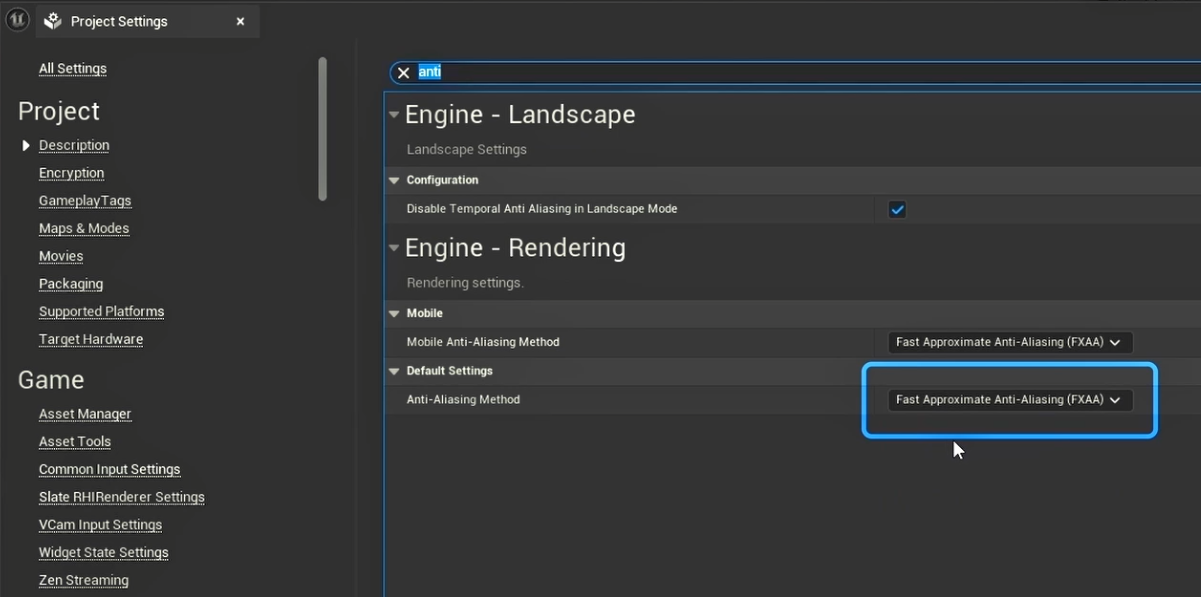
- Select Fast Approximate Anti-Aliasing (FXAA) in Edit → Project Settings → Engine Rendering → Default Settings → Anti-Aliasing Method.
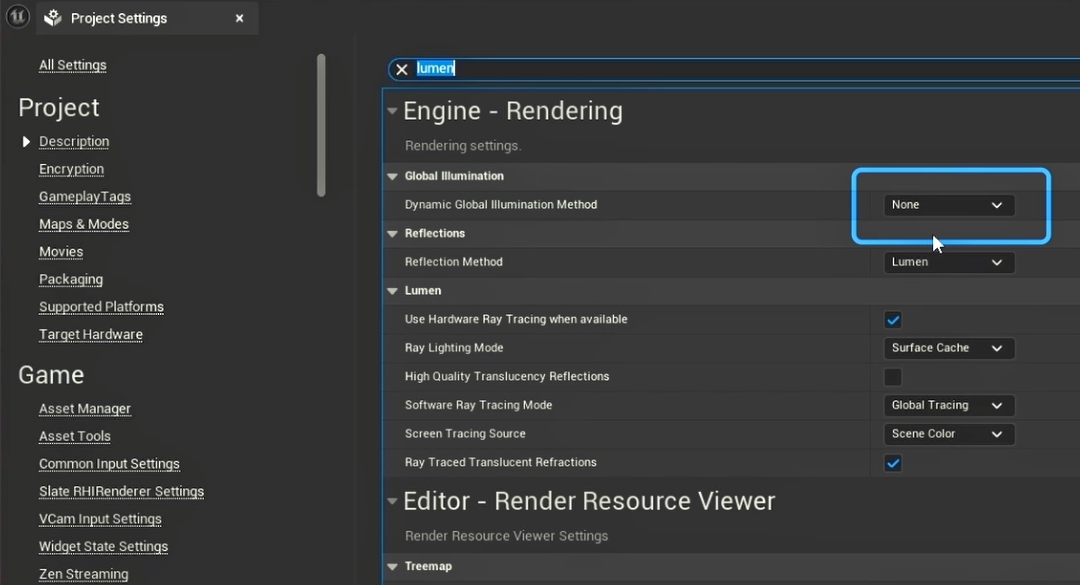
- If your scene consists of only Gaussian Splat models, deactivate Lumen by selecting None in Edit → Project Settings → Engine Rendering → Global Illumination → Dynamic Global Illumination Method.
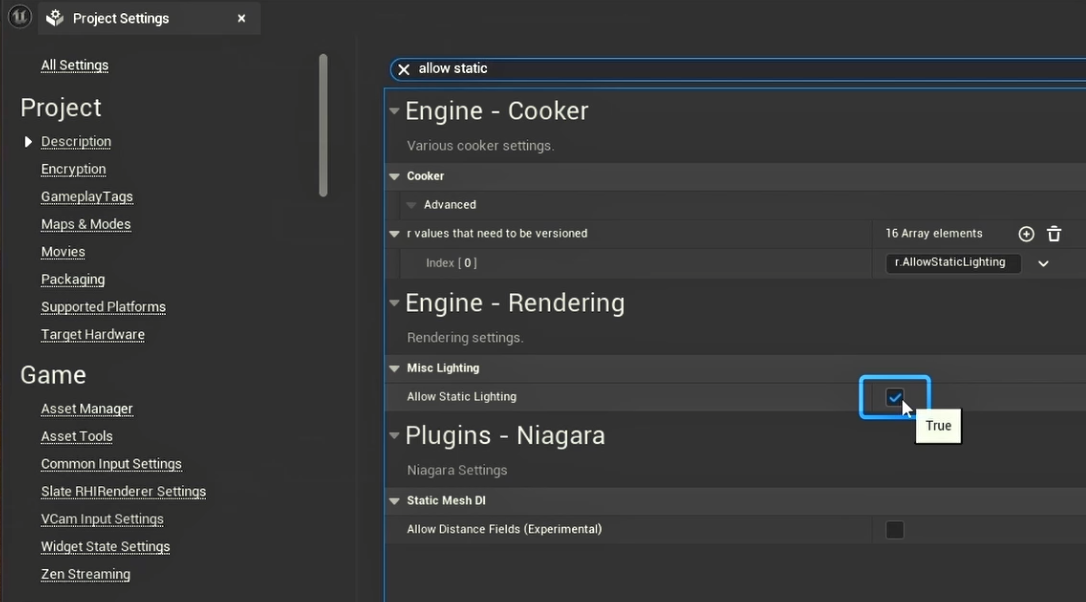
- After deactivating Lumen, to display the Gaussian scene correctly, check if Allow Static Lighting is set to TRUE in Edit → Project Settings → Engine Rendering → Misc Lighting.
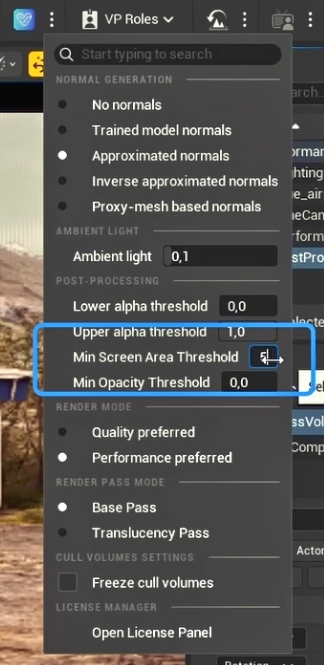
- Also, Min Screen Area Threshold can be adjusted in the Volinga plugin. By default, it is set to 1 providing a balance between visual quality and performance, but it can be tweaked if necessary. Setting the value above 1 reduces Gaussian rendering quality for better performance. Setting it below 1 will recover finer details, but at the cost of performance and, in some cases, minor Gaussian visual glitches.