¶ View Hardware Hash
- Expand Volinga Options: Left-click the three dots on the Volinga icon in the toolbar.
- Open License Manager Panel: Left-click the "Open License Panel" button.
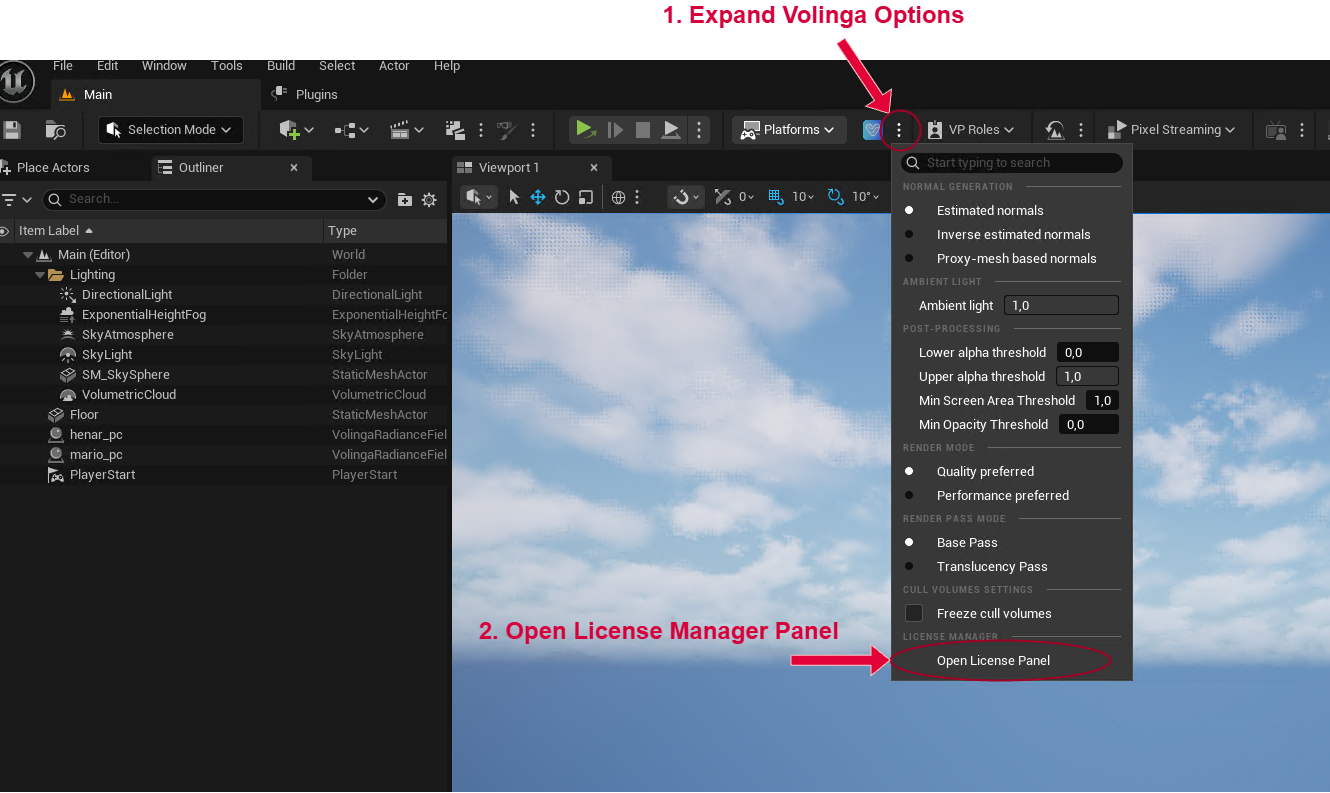
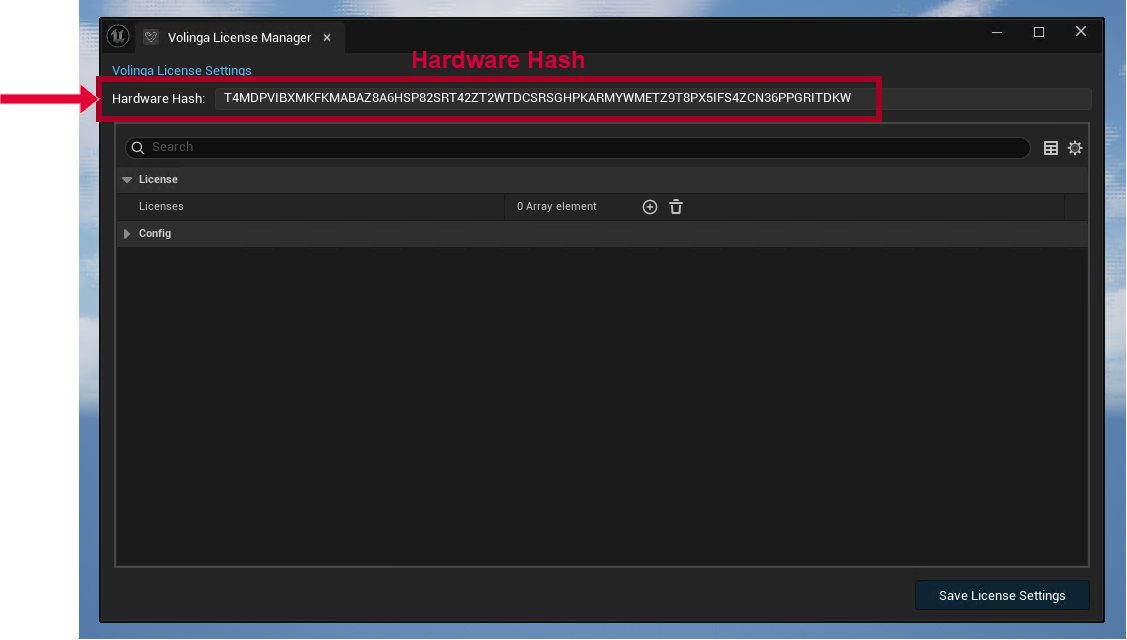
In this panel, you can view your hardware hash, which is required to generate your license.
¶ Importing and Configuring Licenses
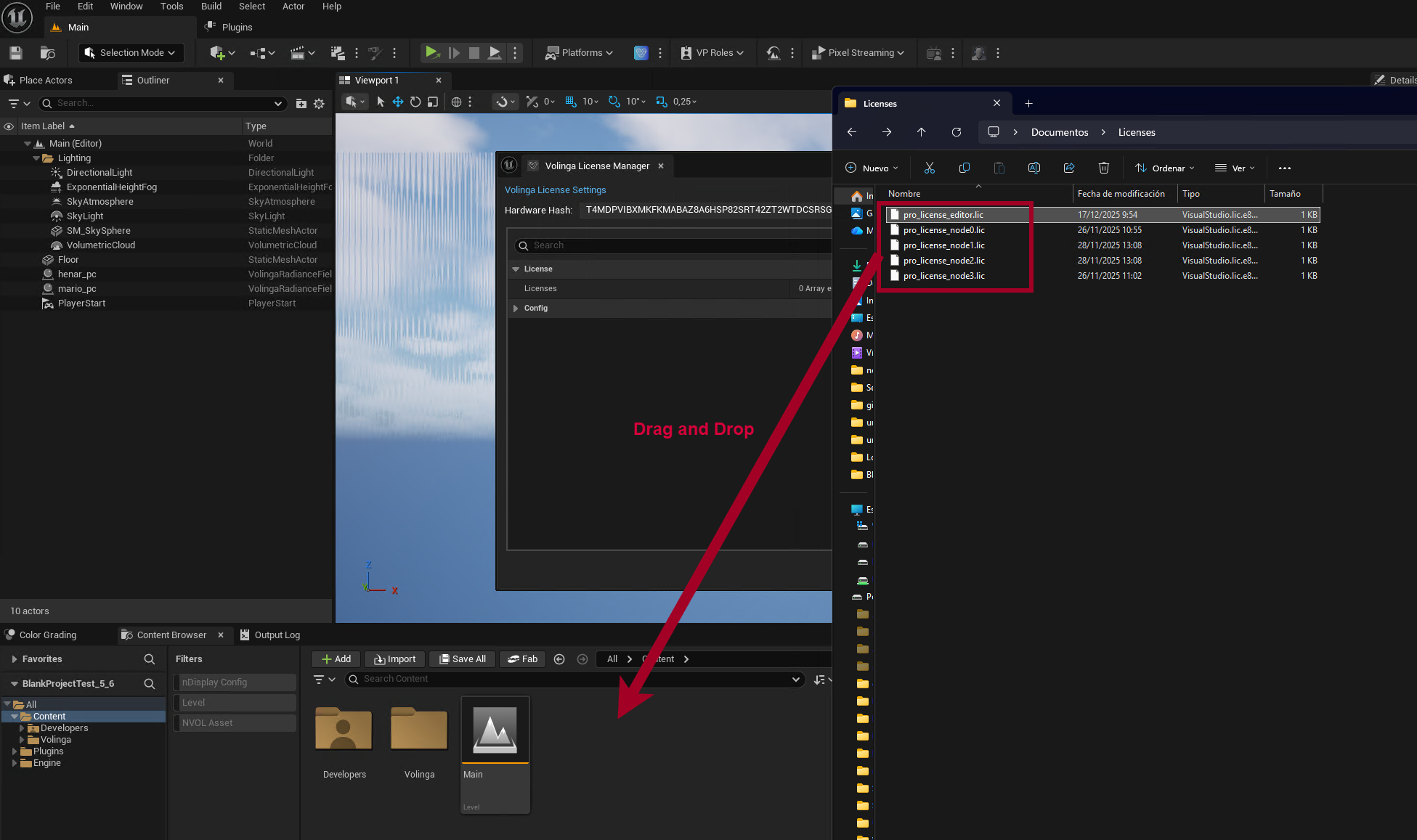
Once you have your license file(s), you can select one or multiple files and drag them into the Unreal Engine Editor Content Browser.
Don’t worry about the location, you can place your license files in any folder that suits your workflow
Once the licenses are imported into the Unreal Engine project, you should see them as .uasset files.
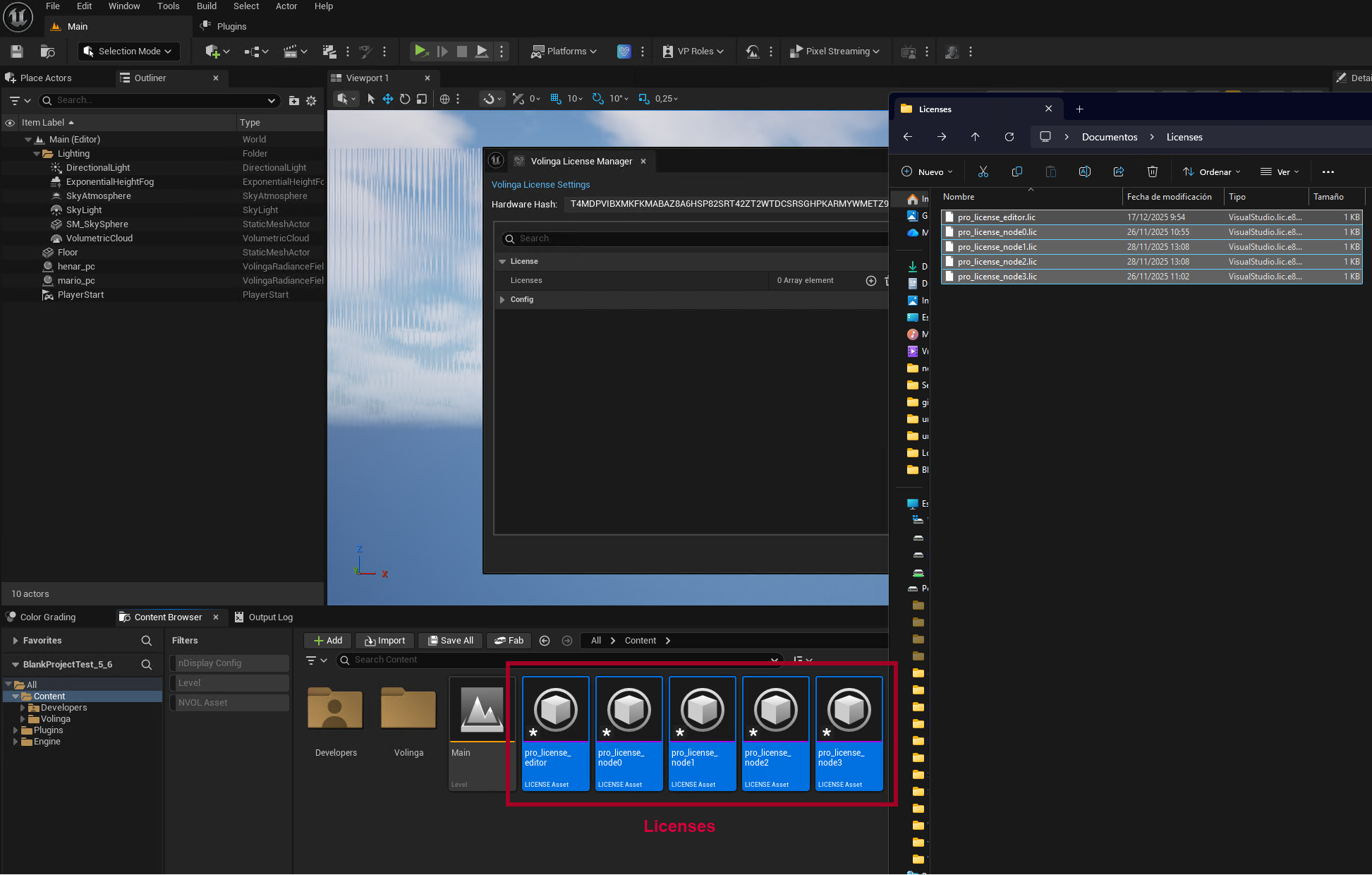
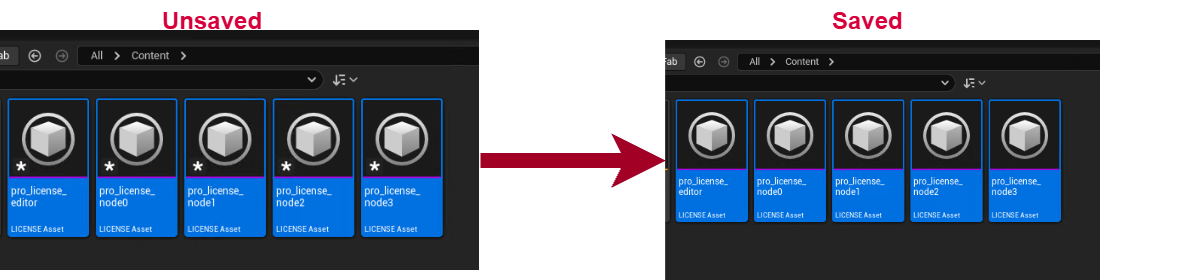
Save the .uasset files related to your licenses within the project.
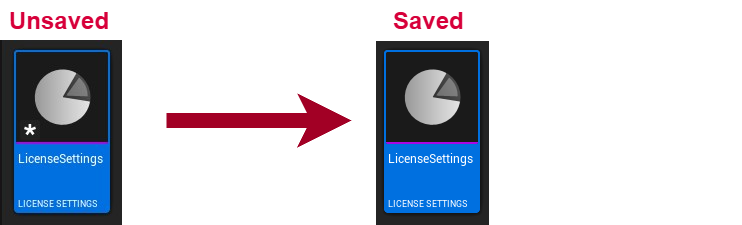
Make sure that your /All/Game/Volinga/Config/LicenseSettings configuration file is saved.
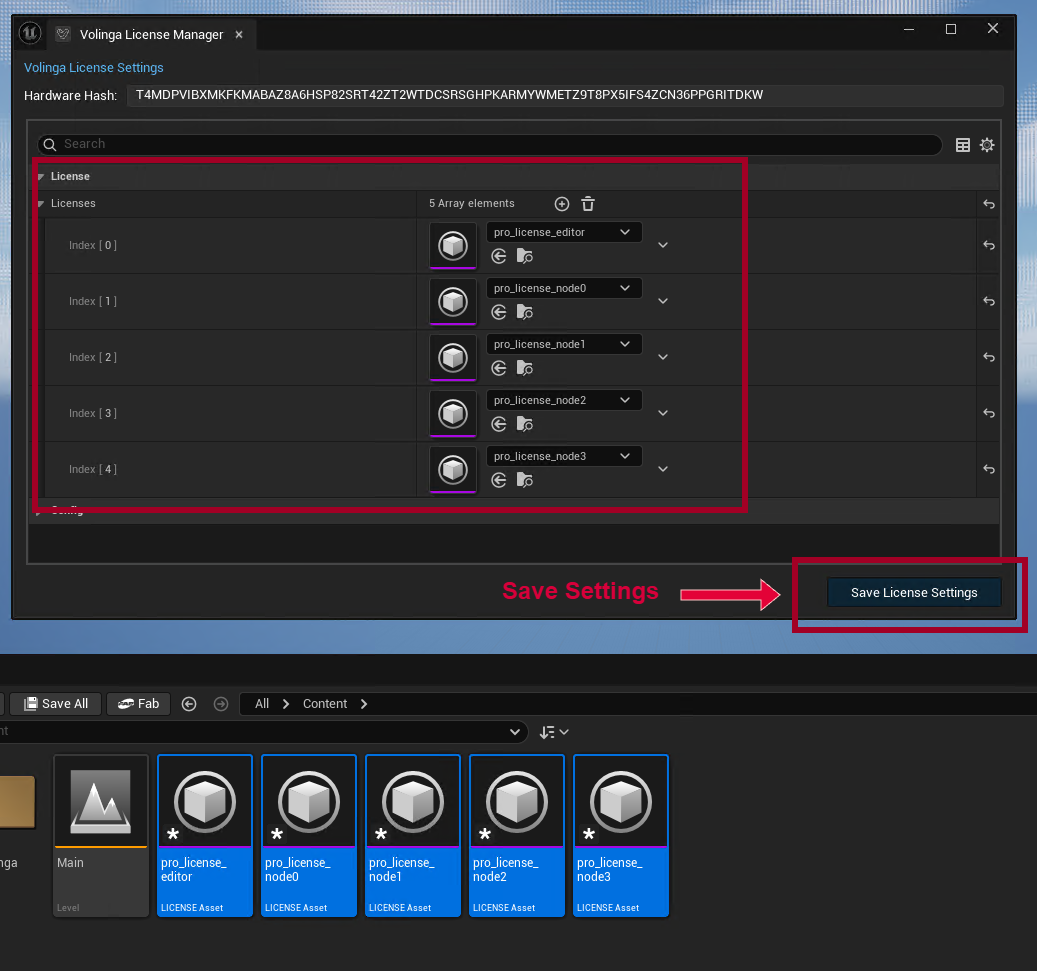
You can save it either by using the “Save License Settings” button in the Volinga License Manager panel, or manually (Right Click → Save or CTRL+S).
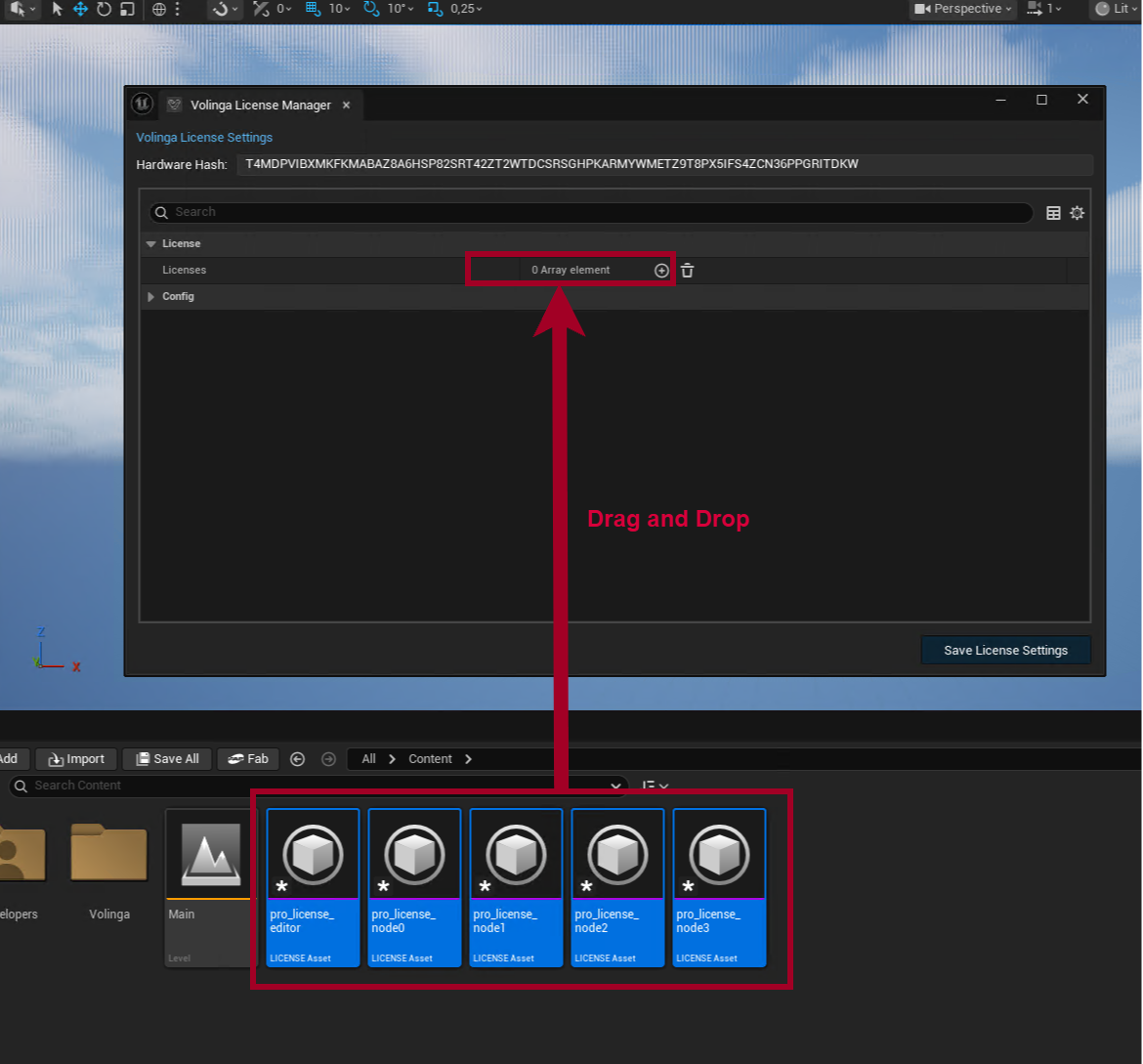
Add licenses to the configuration:
Once your licenses are imported into the project, you must drag and drop one or multiple license .uasset files into the licenses array displayed in the Volinga License Panel.
Once the licenses are loaded in the panel, remember to save the settings.
After configuring and saving the license settings, close and reopen the Unreal project as a precaution to ensure that everything is working correctly.